
Prescriptions and lab orders
Write prescriptions and lab orders, then print, dispense and enter results.
Write prescriptions and lab orders from a visit or a patient record. Track them all on the Orders page.
Write a prescription
- On the visit or patient, click Prescribe.
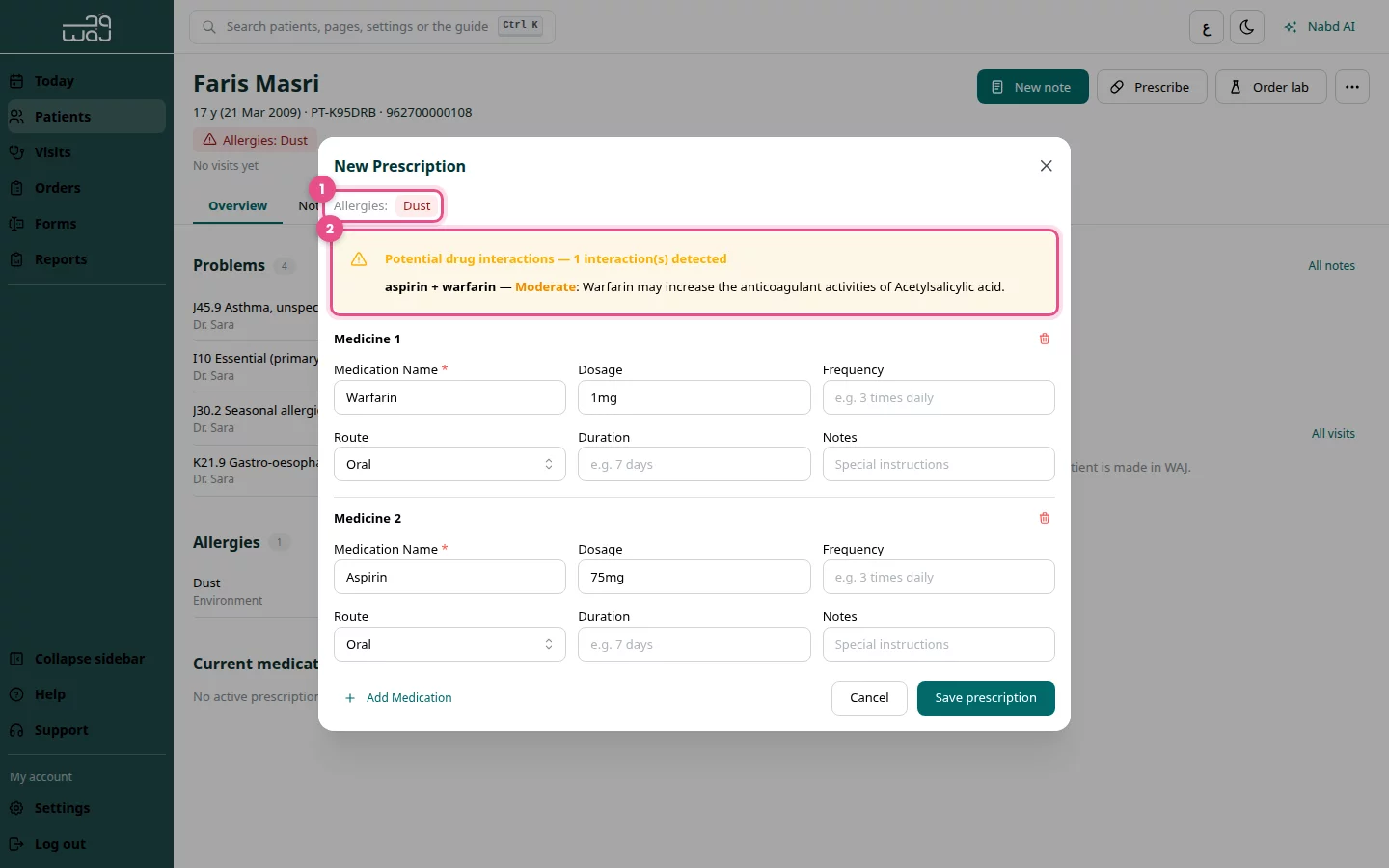
- Check the Allergies: line at the top. If a medicine matches an allergy, you see Patient is allergic to.
- Type the Medication Name, then fill in the dosage, frequency, route and duration.
- Click Add Medication for another medicine.
- Check Potential drug interactions if it appears.
- Click Save prescription.
Order a lab test
- Click Order lab.
- Type the Test / Panel Name and choose the Priority.
- Click Save lab order.
Use the Orders page
- Click Orders in the menu.
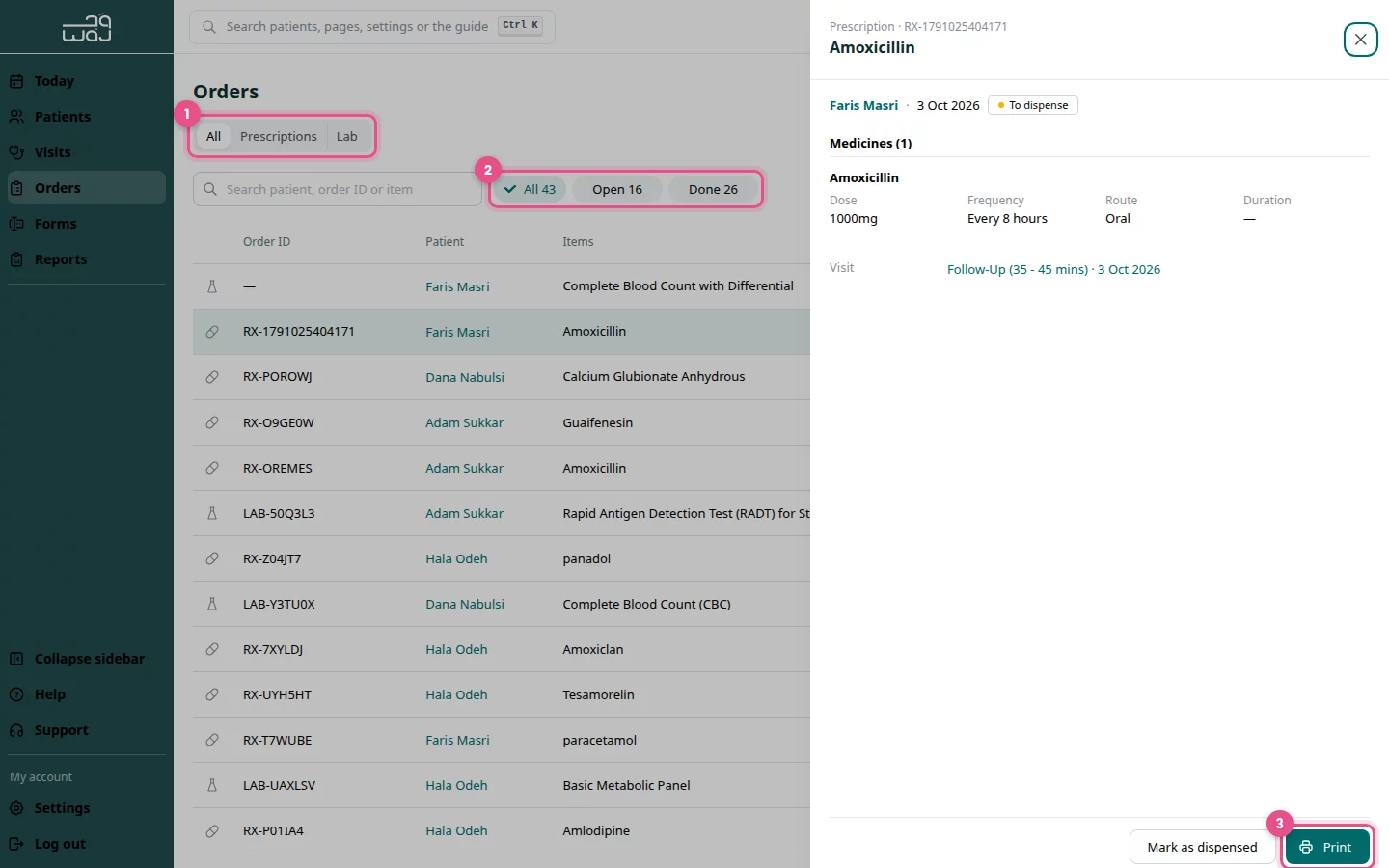
- Switch between All, Prescriptions and Lab.
- Filter by status: All, Open or Done.
- Click an order to open it, then click Print.
Mark a prescription as dispensed
- Open the prescription on Orders.
- Click Mark as dispensed and confirm.
Enter lab results
- Open the lab order on Orders.
- Click Enter results, add the results, then click Save results.
Good to know
- Click New order on Orders to write a Prescription or Lab order without opening a visit first.
- Your clinic name and logo on printouts come from Clinic settings.
Follow WAJ on Google
Add WAJ as a preferred source to see more of our articles in your Google Search results, marked with a "preferred" badge.