
Clinic settings
Set your own preferences and manage your clinic's branding, team, features and templates.
Click Settings at the bottom of the menu, under My account, to open Clinic settings. Pick a section on the left. My preferences applies only to you; the other sections apply to the whole clinic.
My preferences
- Choose your Language, then click Save language.
- Under AI assistant, set the Response language, your Specialty and any Custom instructions.
- Click Save preferences.
Profile and branding
- Upload your logo and check Clinic name, Accent colour and Footer text.
- Check the Preview, then click Save changes.
These appear on printed prescriptions, lab orders and exported documents.
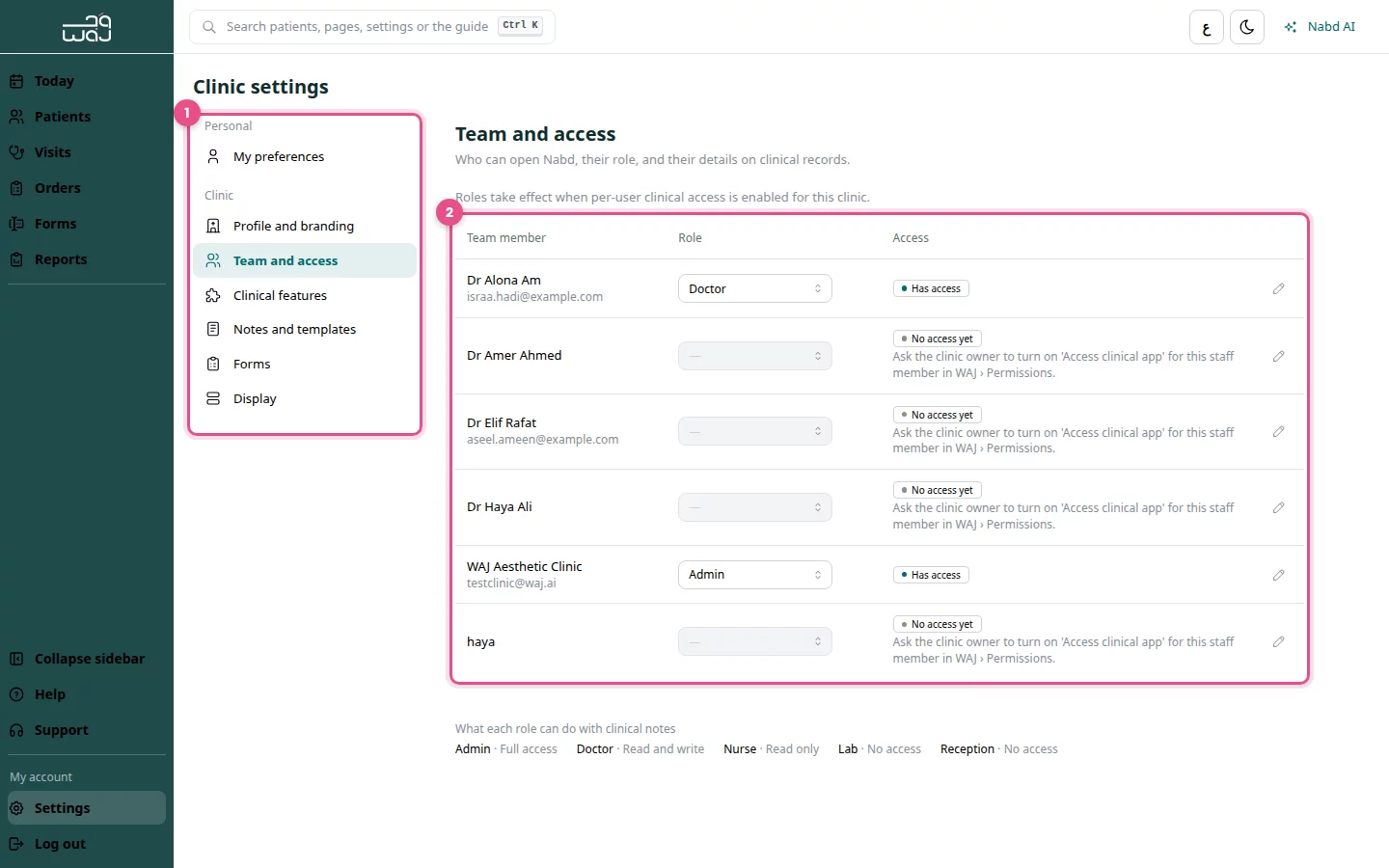
Team and access
- Open Team and access to see who Has access and who has No access yet.
- To give access, the clinic owner turns on 'Access clinical app' for that staff member in WAJ › Permissions.
- Click Edit details to change how a person's name appears on clinical records.
What each role can do with clinical notes: Admin has full access, Doctor can read and write, Nurse can read only, and Lab and Reception have no access.
Clinical features
- Turn tools on or off, such as Forms, Safety checks, Clinical photos or Dental chart.
- Under Rules, turn on Require a note before checkout if needed.
- Under Nabd AI panel, choose Open by default, Closed by default (open from the header) or Hidden.
Changes save straight away.
Notes and templates
- Choose the Default template for new visit notes.
- Click New template to add your own headings.
Display
Choose which details show in each list and on the patient record. Changes save straight away.
Follow WAJ on Google
Add WAJ as a preferred source to see more of our articles in your Google Search results, marked with a "preferred" badge.