
Photos, maps and dental chart
Turn on clinical photos, face and body maps and the dental chart, and find them on the record.
Clinical photos, the face map, the body map and the dental chart are optional tools. A clinic admin turns them on for everyone.
Turn the tools on
- Click Settings in the menu to open Clinic settings.
- Open Clinical features.
- Turn on Clinical photos, Face map, Body map or Dental chart.
Changes save straight away.
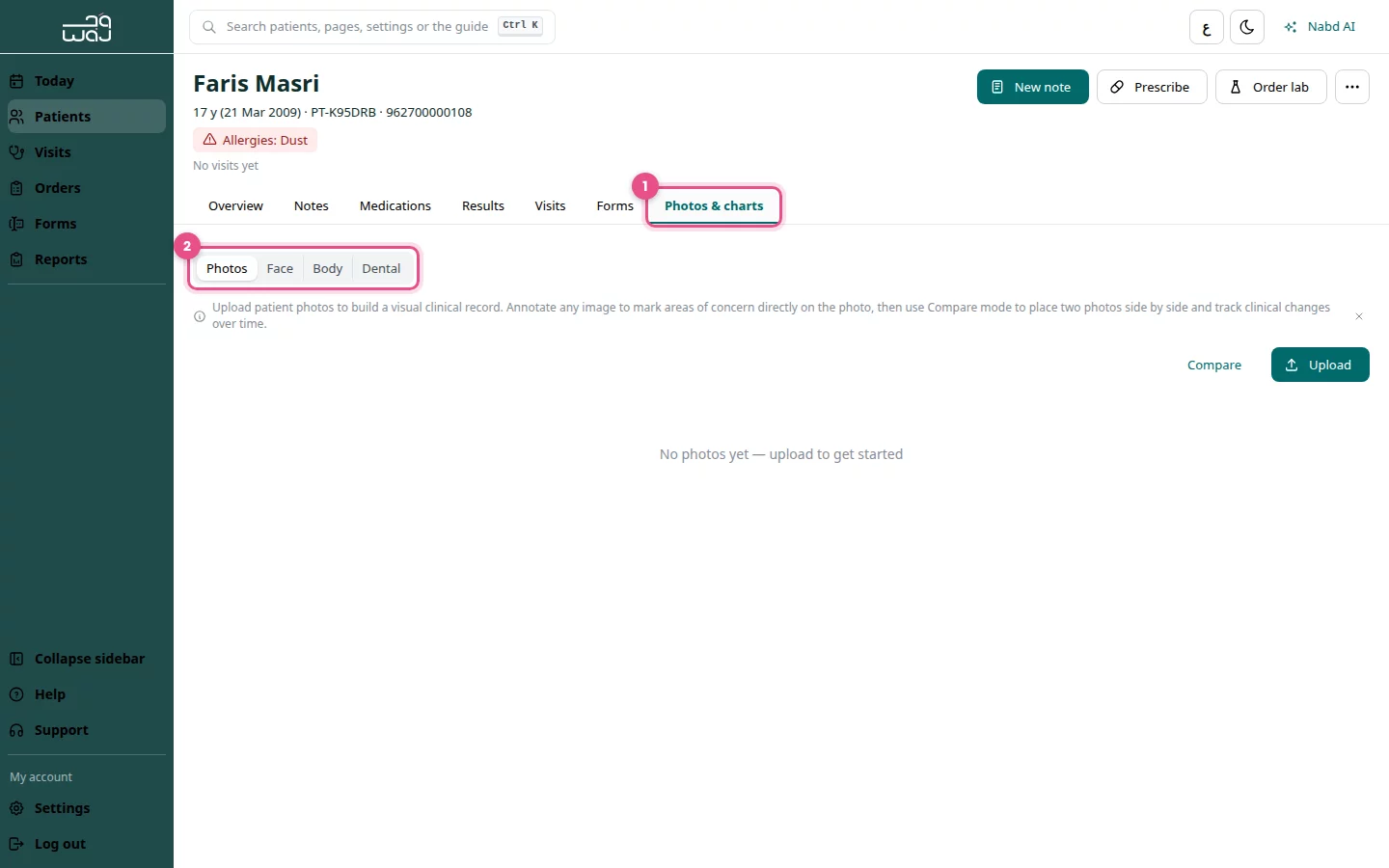
Find them on the patient record
- Open the patient.
- Click the Photos & charts tab.
- Choose Photos, Face, Body or Dental.
Add findings during a visit
- Open the visit.
- Click the Photos & maps tab.
- Upload photos or mark findings on the face map, body map or dental chart.
Good to know
- On the patient record, the dental chart is read-only. Chart teeth from the visit page.
- Pick a visit under the dental chart to see only that visit's findings.
- Compare before and after photos from the Photos view.
Follow WAJ on Google
Add WAJ as a preferred source to see more of our articles in your Google Search results, marked with a "preferred" badge.