
Forms
Set up intake forms, consents and scales, send them to patients and read the answers.
Forms are questionnaires your patients fill in — on their phone through a link, or with you in the clinic.
Set up your forms
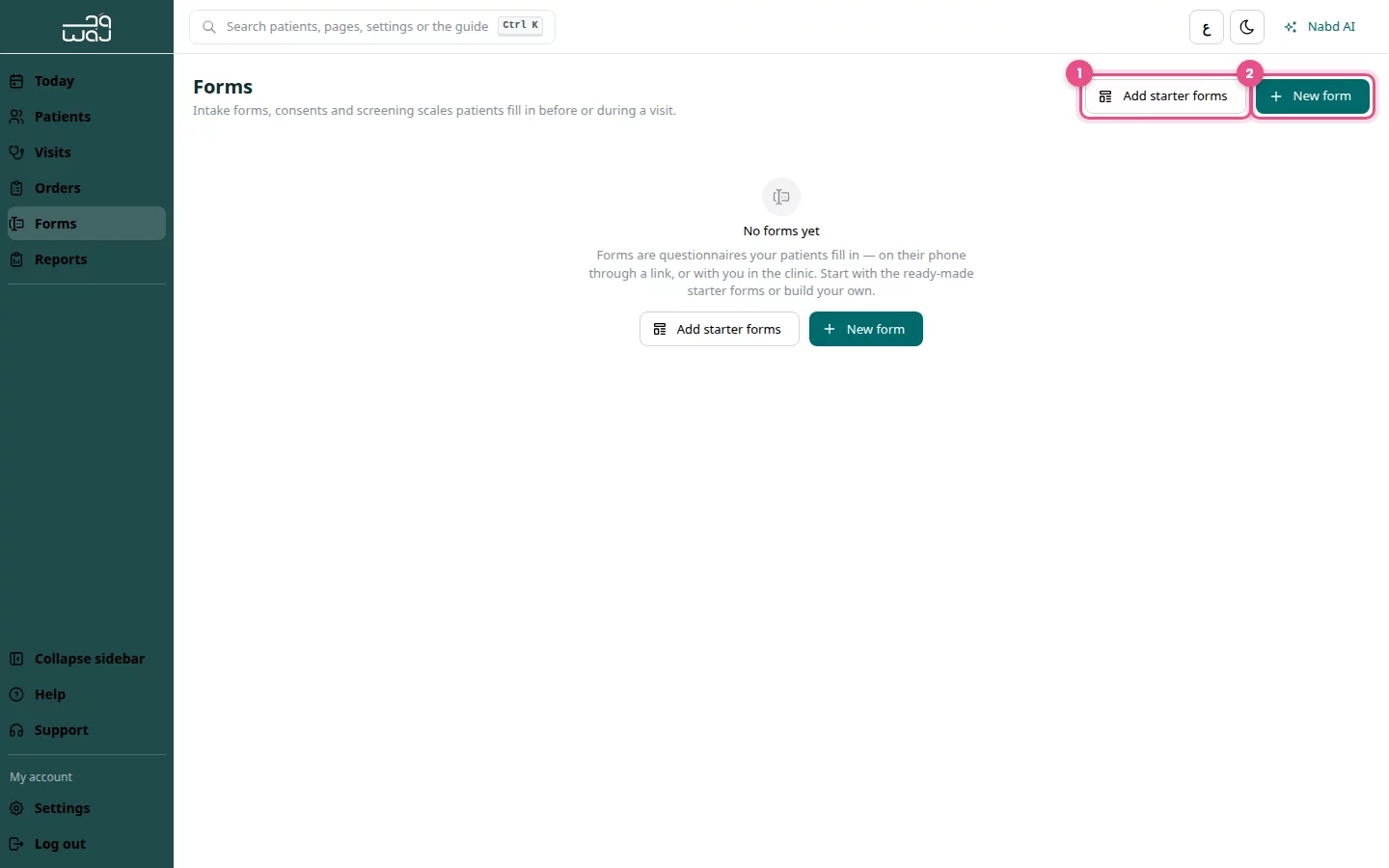
- Click Forms in the menu.
- Click Add starter forms to add ready-made forms, then confirm.
- Or click New form, add the questions, and click Save form.
- Click Set as active so the form can be sent.
Send forms to a patient
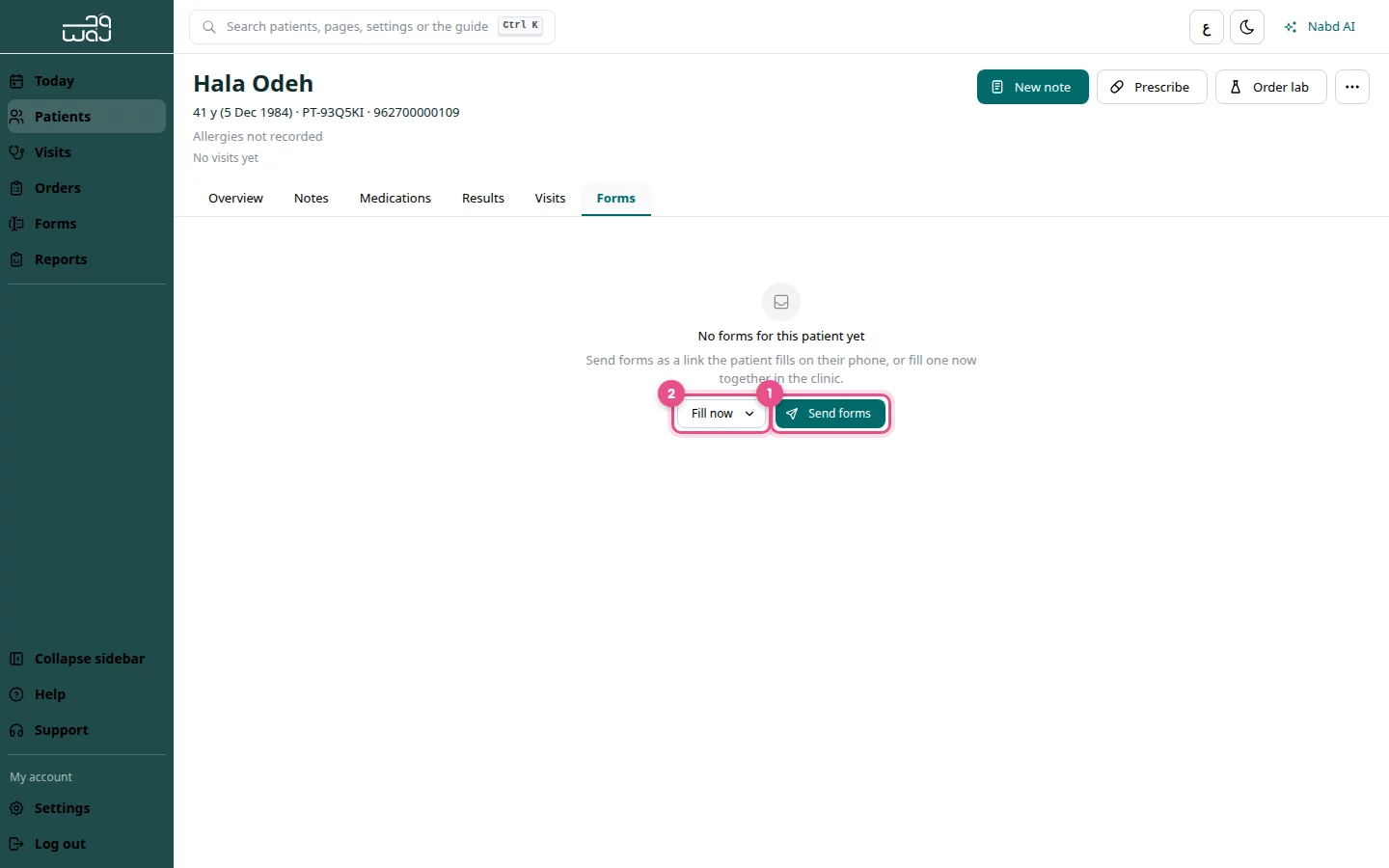
- Open the patient and go to the Forms tab.
- Click Send forms.
- Choose one or more forms, then click Create link.
- Share the link: Copy link, Send on WhatsApp to the patient's number, or let the patient scan the QR code.
The patient gets one link for all chosen forms. It stays open for 7 days.
Fill a form in the clinic
- On the patient's Forms tab, click Fill now.
- Choose the form and fill it in with the patient.
- Click Save answers.
See answers and scores
- Open the patient's Forms tab.
- Links not yet answered are under Waiting for the patient. Click Send again if needed.
- Answered forms are under Completed. Open one to see the answers.
Good to know
- Scored scales such as PHQ-9 and GAD-7 calculate their score automatically.
- Starter forms can't be edited. Click Duplicate to make your own version.
- If Forms is missing, turn it on in Clinic settings › Clinical features.
Follow WAJ on Google
Add WAJ as a preferred source to see more of our articles in your Google Search results, marked with a "preferred" badge.