Waj

Online Profile

The Online Profile feature allows you to create and customize a professional website for your beauty salon or business. Your website will include:

The Online Profile feature allows you to create and customize a professional website for your beauty salon or business. Your website will include:

  • Custom Subdomain: Your own URL like yoursalon.waj.app

  • Pre-designed Sections: Welcome, About, Booking, Gallery, FAQ, Map, and more

  • Beautiful Themes: Choose from 16 pre-built color palettes or create your own

  • Custom Fonts: Apply fonts globally across all sections

  • Live Preview: See changes in real-time as you edit

  • Image Upload: Add photos for your services, team, and business

  • Custom Sections: Create multiple instances of sections (e.g., multiple About sections)

  • Online Booking Integration: Enable customers to book directly from your website

  • Social Media Links: Connect Instagram, Facebook, and other platforms

  • Toggle Visibility: Turn your website on or off anytime

Accessing Online Profile

  1. Open the WAJ app

  2. Tap on Online Profile from the main menu

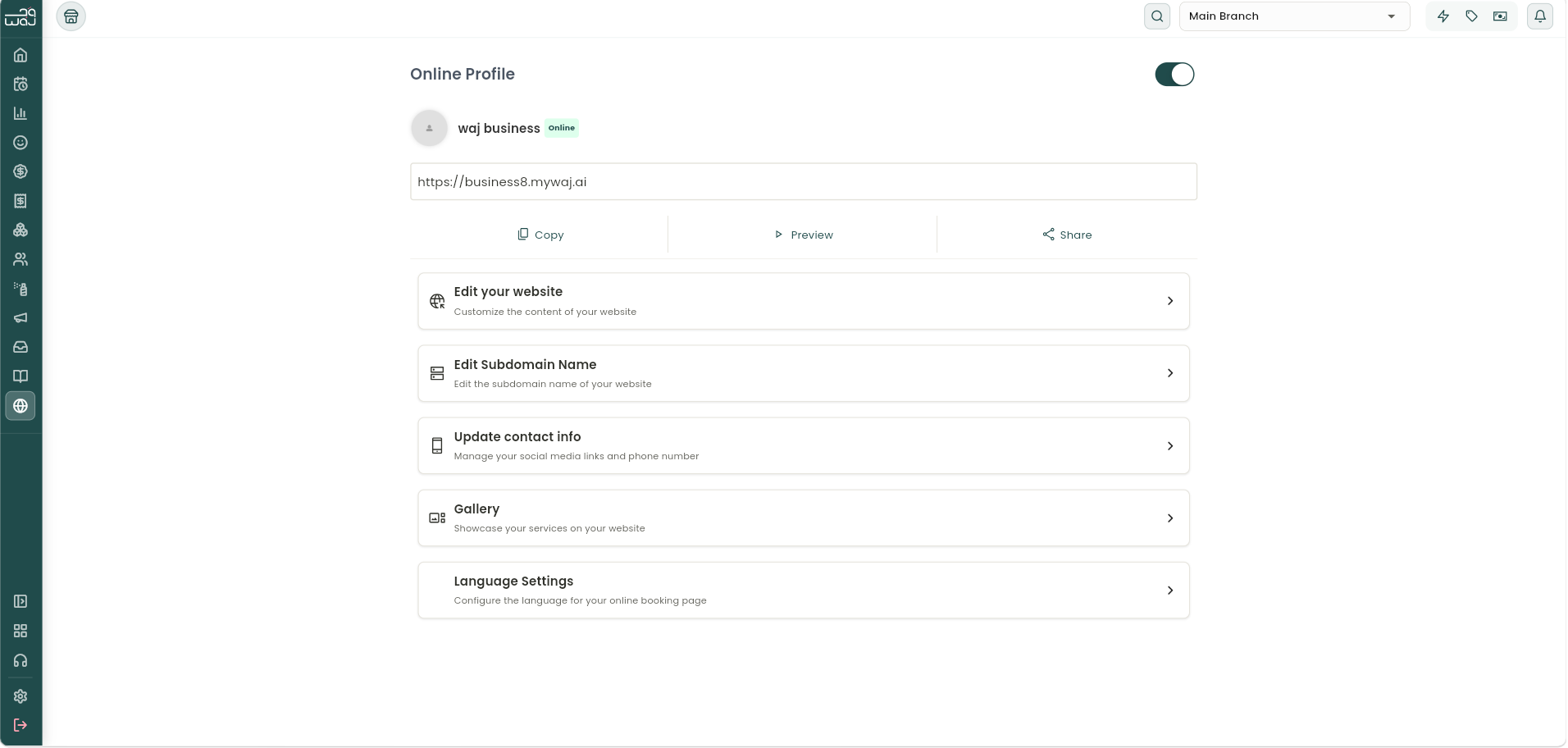
  3. Your profile homepage will display with:

  • Business logo and name

  • Online status indicator (Online/Offline)

  • Your website URL

  • Action buttons (Copy, Preview, Share)

Your Profile Homepage

Profile Overview:

  • Logo: Your business logo (tap to edit)

  • Business Name: Your registered business name

  • Status Badge: Shows if your website is online or offline

  • Website URL: Your unique subdomain (e.g., mysalon.waj.app)

Quick Actions:

  1. Copy: Copy your website URL to clipboard

  2. Preview: Open your website in a browser

  3. Share: Share your website via WhatsApp, email, etc.

Menu Options:

  • Edit Your Website: Open the website builder

  • Edit Subdomain Name: Change your website URL

  • Update Contact Info: Edit social media links and contact details

  • Gallery: Manage photos displayed on your website

  • Language Settings: Configure website language

Toggle Online/Offline

Use the toggle at the top right to:

  • Enable: Make your website visible to customers

  • Disable: Hide your website while you make changes

Edit Subdomain Name

Online profile edit subdomain name screenshotOnline profile edit subdomain name screenshot

The "Edit Subdomain Name" feature in the WAJ platform allows the business to customize its web address, making it unique and easily recognizable. This feature is valuable for creating a consistent brand identity and making it easier for clients to find and remember the business’s online presence.

For example, a business named "Glow & Go" could set its subdomain as "glowandgo" (e.g., https://glowandgo.waj.ai), making it simple for clients to access the booking portal directly. A personalized subdomain not only boosts brand recognition but also adds a professional touch to the business’s online profile, improving client trust and making it easier to share the business's link across social media and marketing materials. This feature strengthens the salon's online branding, making the booking process seamless and accessible.

1. Click on "Edit Subdomain Name"2. Type in subdomain nameType in the business's subdomain name and click on "Save Changes".

Upload Gallery →

Upload Gallery

Online profile upload gallery screenshotOnline profile upload gallery screenshotOnline profile upload gallery screenshot

The "Upload Gallery" feature in the WAJ platform allows the business to showcase a collection of high-quality images that highlight its services, team, and overall ambiance. This feature is essential for visually representing the salon's work and attracting potential clients by providing a glimpse of what they can expect during their visit.

For example, a salon can upload photos of stylish haircuts, stunning nail designs, and beautiful makeup applications, giving prospective clients inspiration and confidence in the services offered. A well-curated gallery can also include before-and-after shots, showcasing the transformation clients can achieve. By utilizing the Upload Gallery feature, businesses can enhance their marketing efforts, engage clients visually, and create a strong online presence that showcases their expertise and creativity. This not only helps in attracting new clients but also reinforces the business's brand identity and professionalism.

1. Click on "Galllery"2. Click onClick on "Add New Photo" to upload photos to the website gallery.

Update Contact Details →

Activate/Deactivate Online Profile

Online profile activate deactivate online profile screenshotOnline profile activate deactivate online profile screenshot

Being able to activate or deactivate the online profile gives management control over the business's online visibility, allowing them to easily toggle the business profile on or off. This feature is especially useful for times when the business needs to pause new bookings, undergo renovations, or manage staffing changes without disrupting client expectations.

For example, if a salon is temporarily closed for remodeling, management can deactivate the online profile to prevent new bookings and inform clients of the downtime. When ready to resume, they can simply reactivate it, instantly making the profile visible and accessible again. This feature provides flexibility for the salon to manage its online presence effectively, ensuring accurate information and availability for clients. It’s a straightforward way to maintain control over the salon's digital accessibility, ensuring clients always have an up-to-date view of services and availability.

To activate or deactivate the online profile simply toggle the switch in the top right corner on or off.

Edit Website →

Edit Website

Online profile edit website screenshotOnline profile edit website screenshot

Editing the website allows management to customize the business’s online website, updating content such as service descriptions, pricing, team bios, images, and others. This feature is crucial for keeping the business's website current, engaging, and reflective of its brand.

For instance, if a business introduces new services or changes pricing, management can quickly make these adjustments on the website so that clients see the most accurate information. They can also update seasonal promotions, add new staff bios, or showcase recent work in the gallery section. This feature empowers businesses to maintain a professional online presence that attracts new clients and keeps existing clients informed. By providing the flexibility to edit content as needed, this feature ensures that the business’s digital platform remains fresh, relevant, and aligned with their evolving brand and offerings.

1. Click on "Edit your website"2. Click on "Edit"Click on edit in the top right corner of the preview of the website.

Manage your Website Theme, Fonts & Brand →

Online profile edit website enable disable website sections screenshotOnline profile edit website enable disable website sections screenshotOnline profile edit website manage staff visbility screenshotOnline profile edit website manage staff visbility screenshotOnline profile edit website manage staff visbility screenshotOnline profile edit website manage staff visbility screenshotOnline profile edit website manage staff visbility screenshotOnline profile edit website manage your website theme fonts and brand screenshotOnline profile edit website manage your website theme fonts and brand screenshotOnline profile edit website publish services and offers screenshotOnline profile edit website publish services and offers screenshotOnline profile edit website reorder website sections screenshotOnline profile edit website reorder website sections screenshotOnline profile screenshotOnline profile screenshot