
Reports Overview
Overview
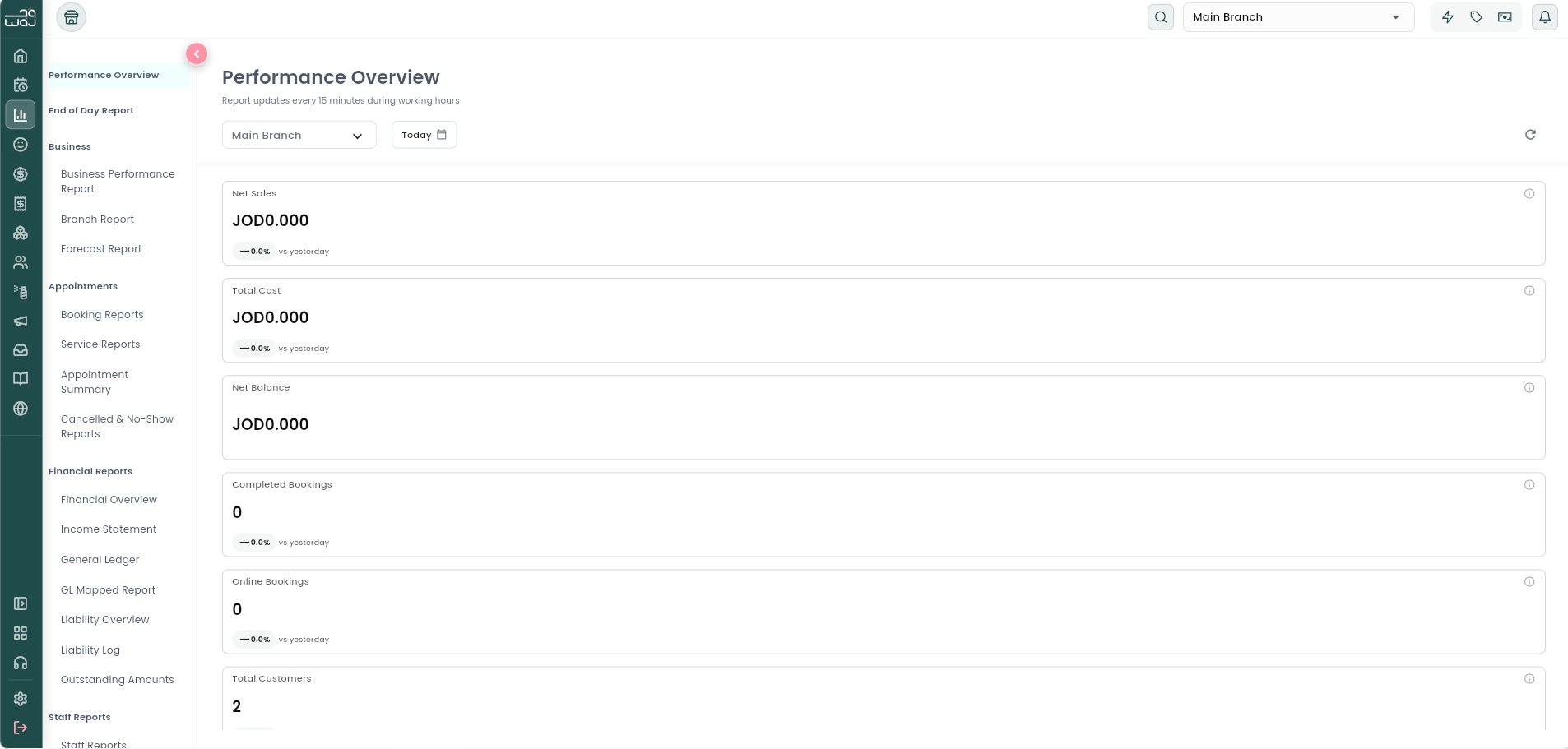
The Reports area is WAJ's analytics hub — a set of dashboards covering your business's performance, money, staff, clients, marketing, website, inventory, and (if you use it) your sales-lead pipeline. Open it from your left sidebar (or the "More" menu on smaller screens). On tablets and desktop, Reports opens as its own screen with a collapsible side-menu listing every report, grouped into sections. On phones, reports are presented as a scrollable list of tiles instead of a side menu.
Some reports require specific report-access permissions — if a report or a metric on it doesn't appear for you, ask your business owner or manager to grant you access.
Report categories
Reports are grouped into these sections:
- Performance Overview
- End of Day Report
- Business (Business Performance, Branch Comparison, Forecast)
- Appointments (Booking Reports, Service Reports, Appointment Summary, Cancelled & No-show)
- Financial Reports (Financial Overview, Income Statement, General Ledger, GL Mapped, Liability Overview, Liability Log, Outstanding Amounts)
- Staff Reports (Staff Reports, Attendance)
- Clients (Clients, Retention Analytics, Surveys & Reviews)
- Marketing
- Website Reports (Website Booking, Website Traffic)
- Inventory Reports (Inventory Overview, Stock Usage History, Categories Summary, Daily Inventory Log, Products Used in Services)
- Leads Reports (Sales Overview, Sales Activities, Sales Actions, Sources & Attribution) — only shown for businesses using WAJ's sales/leads pipeline (CRM)
Filtering every report
Almost every report shares the same filter bar at the top:
- Branch selector — pick a single branch, or "All Branches" to see combined totals.
- Date range selector — quick presets (Today, This Week, Last Week, This Month, Last Month, This Year, Last Year) or Custom to pick any start/end date. Some reports use a single-day picker instead (such as the End of Day Report).
- Many reports also let you export the data you're looking at as PDF, CSV, or Excel, using a download icon in the report header. Files are saved with a timestamped name.
Some reports add their own extra filters (staff, category, granularity, and so on) — these are called out on each report's own topic.
Changing a filter reloads the report automatically. The Performance Overview is the exception: it also refreshes its own figures automatically every few minutes even without a filter change.
Why "new clients" and "client counts" don't always match across reports
This is the single most common source of confusion when comparing reports, so it's worth understanding up front: WAJ has three different, equally valid ways of counting clients, and each one answers a different business question.
- Performance Overview counts your customer base by registration — it's a live, real-time count of everyone who has signed up, whether or not they've ever booked or been serviced. A brand-new sign-up shows up here within minutes, even before their first visit.
- End of Day, Business Performance, and Branch Report count clients by transaction — a client only counts as "new" or "returning" here if they actually had a paid sale or booking that day. "New" means their registration date is the same day as this transaction; "returning" means they'd registered on an earlier day. A customer who signed up but never bought or booked anything never appears in these counts at all.
- Clients Report counts clients by visit — anyone with a booking in the period counts, including walk-ins who may not have a full registration on file. "New" here means the customer registered at some point within the selected date range — not necessarily on the same day as this particular visit.
None of these is "wrong" — they're built to answer different questions ("who signed up," "who actually paid us," and "who did we actually see"). When two reports show different client numbers for what looks like the same period, this is almost always why.
Notes & limitations
Access to each report is controlled by Reports permissions (such as View financial report, View booking report, View services report, View sales report, and staff report permissions). If you do not have the required permission, the report will not open. Staff without access to other staff members' reports only see their own individual staff report.
Follow WAJ on Google
Add WAJ as a preferred source to see more of our articles in your Google Search results, marked with a "preferred" badge.