
Managing, Editing, and Cancelling Bookings
Overview
Open any appointment from the calendar or Table view to view and manage it — change its status, edit services, reschedule, set up a repeat series, or cancel it. Every edit (staff reassignment, price change, customer swap, duration change, services added or removed) is recorded in the appointment's activity history.
Editing and rescheduling
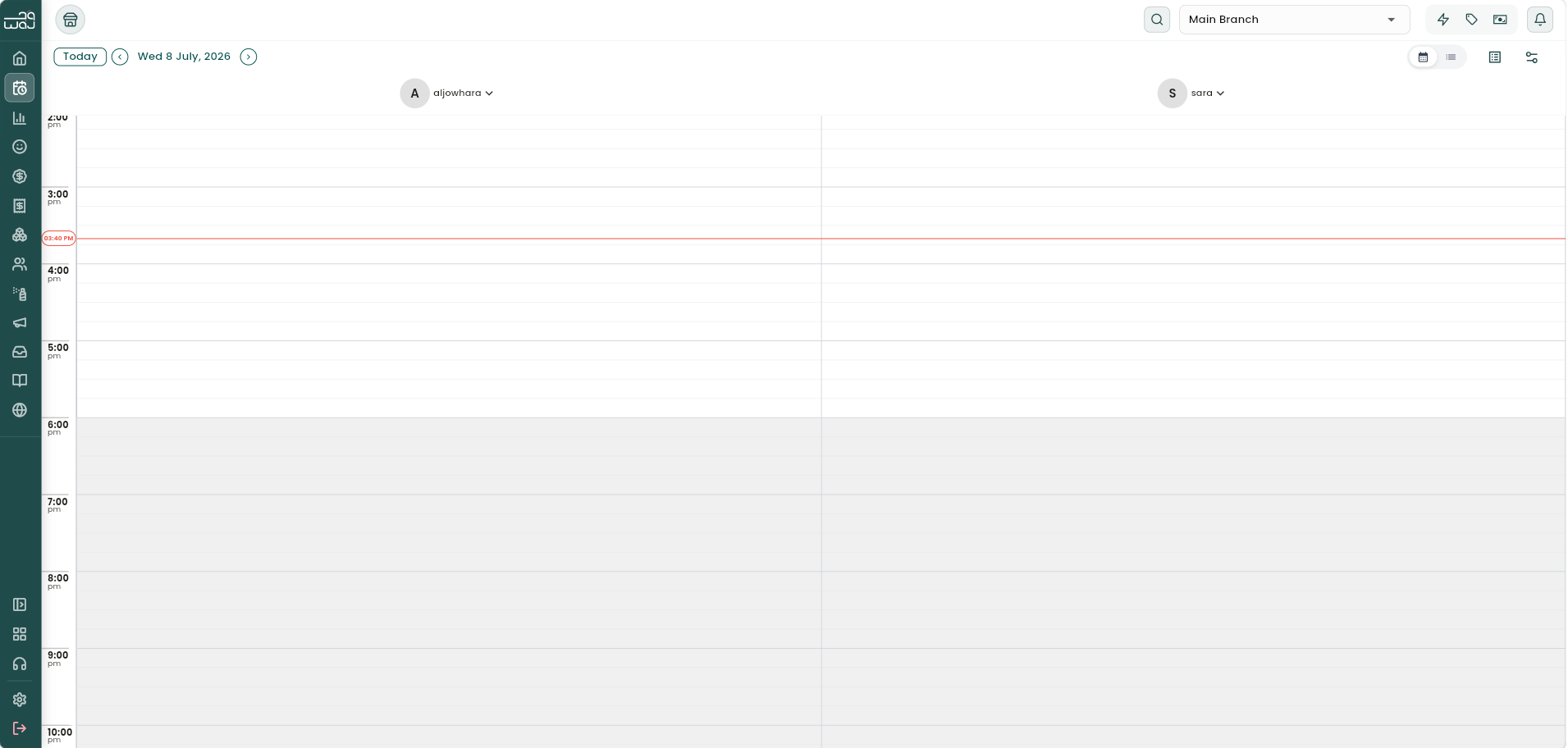
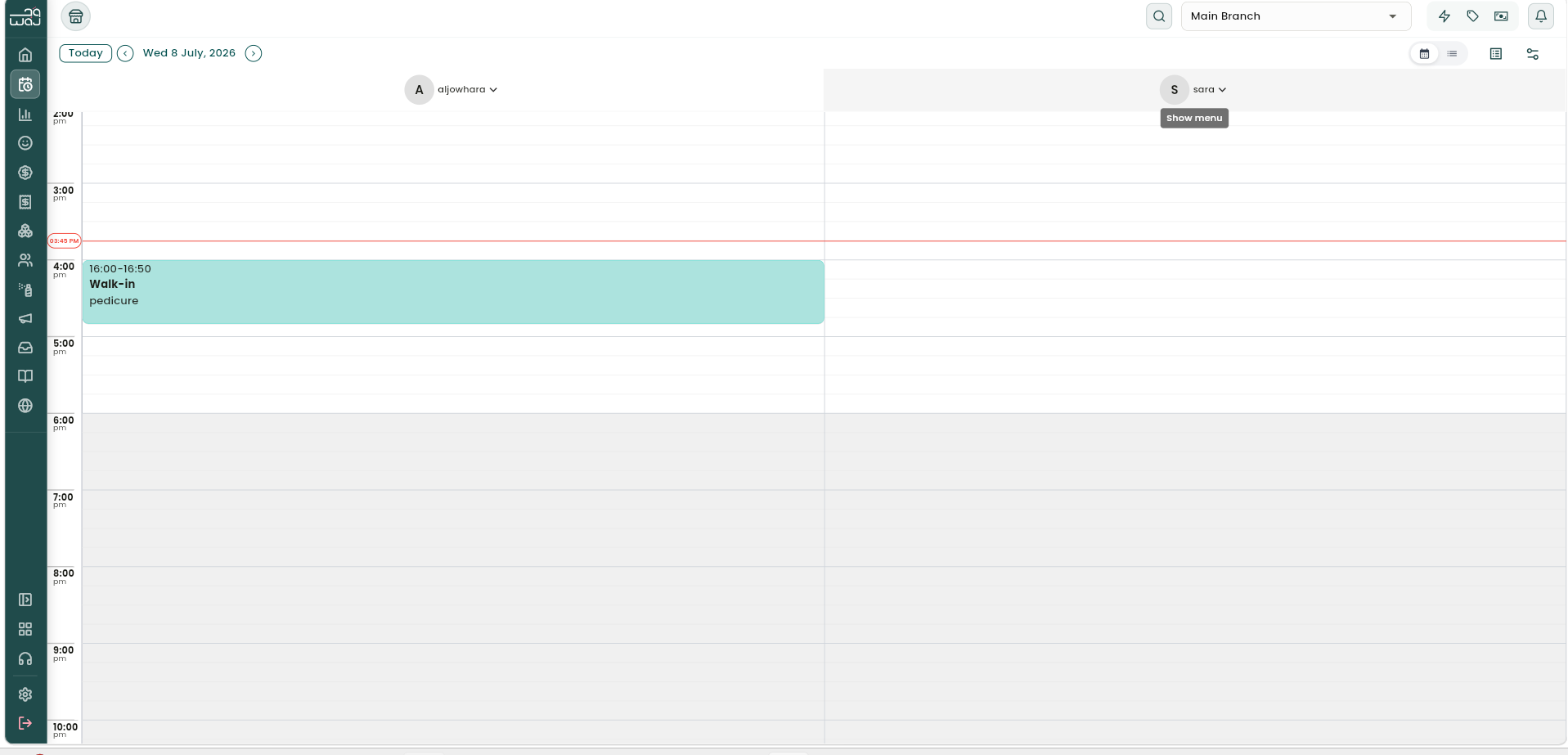
Open an appointment to edit it inline — a Save button appears as soon as you make a change.
- Reschedule by dragging the appointment to a new time or staff column right on the calendar, or drag its bottom edge to change its duration.
- Rescheduling a cancelled appointment doesn't reopen it. Instead you'll see a note explaining that rescheduling creates a brand-new booking with the same details, while the original cancelled booking stays in your history for the record. Tap Reschedule to create the new one.
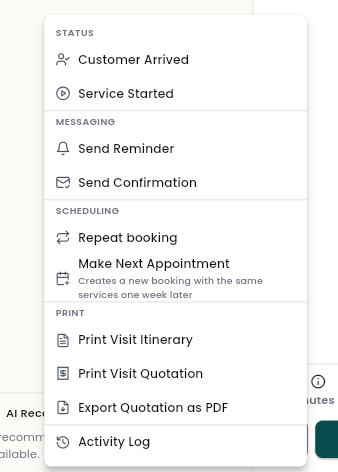
- Make Next Appointment is a shortcut for repeat visits: it creates a new booking with the same services, exactly one week later, without re-entering anything.
Appointment statuses
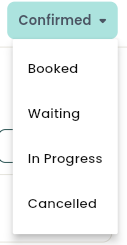
Every appointment moves through a status as it progresses:
- Pending — awaiting confirmation
- Booked — reserved, not yet confirmed
- Confirmed — the customer's attendance is confirmed
- Waiting — the customer has arrived and is waiting
- In Progress — the service is underway
- Checked Out — the visit is complete and paid
- No Show — the customer didn't show up
- Cancelled — the appointment was cancelled
- Waitlisted — linked to a waitlist entry
There's no separate "Completed" status — a checked-out appointment counts as completed in your reports.
Statuses move in specific directions:
- From Booked, move to Confirmed or Cancelled.
- From Confirmed, move back to Booked, forward to Waiting or In Progress, cancel, or — only after its start time has passed — mark No Show.
- From Waiting, move to In Progress, back to Confirmed, or cancel.
- From In Progress, move back to Confirmed or cancel.
- From Pending, confirm or cancel.
- From Waitlisted, confirm, move to Booked, or cancel.
- Checked Out, No Show, and Cancelled don't move forward again on their own. A checked-out appointment can only be cancelled if your account has a separate permission for cancelling after checkout; No Show and Cancelled are final — to rebook, use Reschedule to create a fresh appointment.
Two shortcuts speed up common transitions: Customer Arrived moves an appointment straight to Waiting, and Service Started moves it straight to In Progress.
The buttons at the bottom of the screen change with status: Booked and Pending show Cancel and Confirm; Confirmed, Waiting, and In Progress show a menu plus Save and Checkout; Checked Out shows print options, Download Invoice, and Payment Summary; Cancelled shows the reschedule note and Reschedule.
Recurring appointments
To set up a repeating series, open an appointment's menu and choose Repeat Booking.
- Choose a pattern: Weekly, Bi-weekly, Monthly, or Custom (every set number of days).
- Choose how it ends: after a fixed number of sessions, or until a specific date.
- You'll see a preview of every date that will be created, and how many bookings that adds up to, before you save.
Saving creates the entire series in one go. Opening any appointment that's part of a series afterward shows its Recurring Schedule — which session you're viewing out of the total, every date in the series, and the next upcoming date.
WAJ doesn't support booking one time slot for several different clients at once — recurring series are the way to schedule a single client's repeat visits.
Notes & limitations
What you can do depends on your permissions — confirming, cancelling, marking no-shows, and managing bookings in general are each controlled separately, so your available actions may vary by role. For cancellation reasons and no-show fee handling, see Cancellations and No-Show Protection.
Follow WAJ on Google
Add WAJ as a preferred source to see more of our articles in your Google Search results, marked with a "preferred" badge.