
Calendar Views and Navigation
Overview
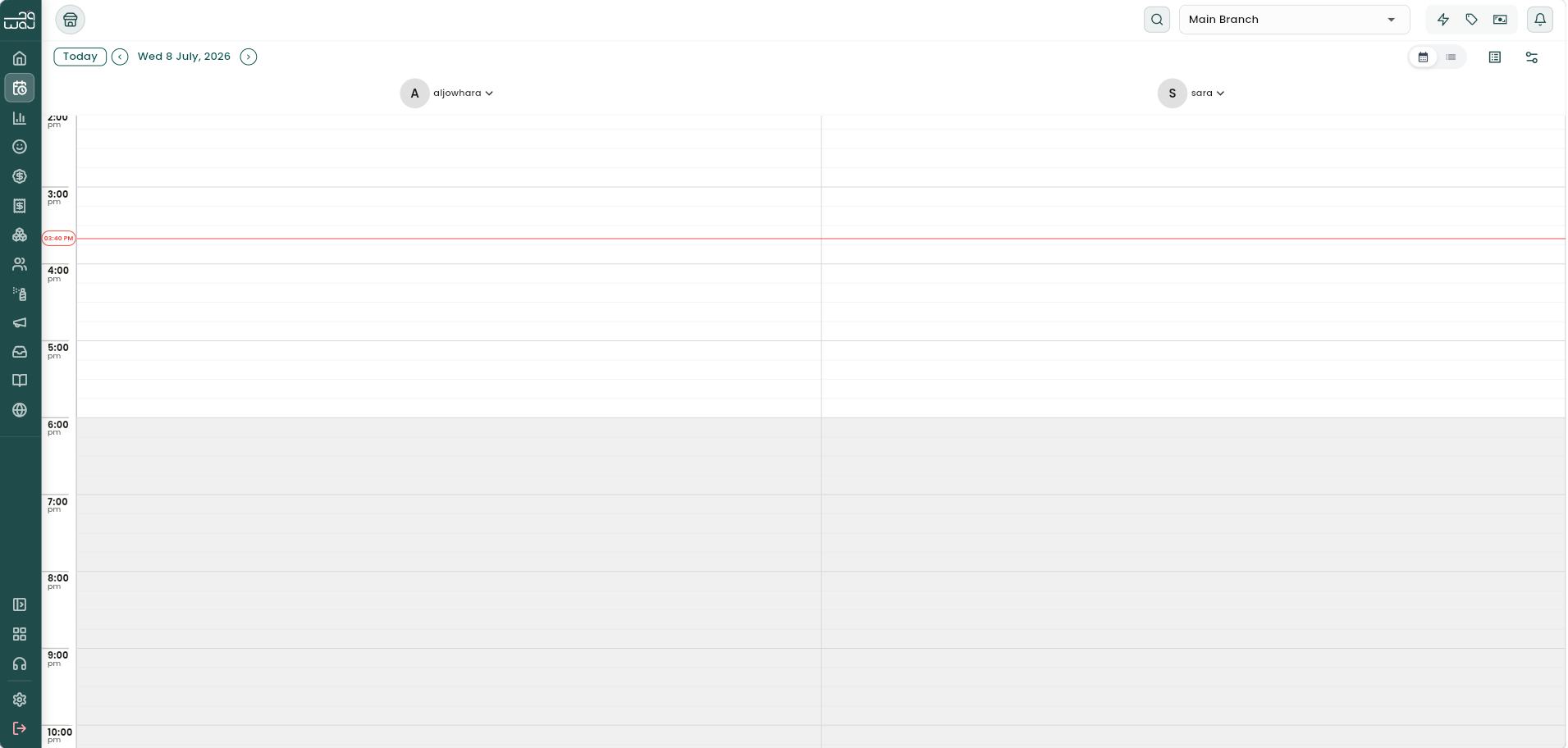
The calendar is where you manage every client visit, from booking to checkout. WAJ uses "booking" and "appointment" interchangeably. Single Day view is the default: every staff member gets a column side by side for one day. There's no month view — the longest stretch you can see in one screen is one week, and only in the per-staff view.
Views
- Single Day — the default general view, one column per staff member, for one day.
- Per-staff view — focus on one team member at a time, in Day, 3 Days, or Week layout. Use Back to general calendar view to return to Single Day.
- Resources view — if your business uses resources (rooms, equipment, etc.), a Staff/Resources toggle swaps staff columns for resource columns.
- Table view — turns the calendar into a searchable list, useful for finding a booking by state, staff, or customer, and for creating a new one with + New.
Filtering what you see
Tap the filter icon to open the filter drawer:
- Search for a specific filter option, or save your current combination as a named preset to reuse later.
- Zoom in or out to change how large each calendar cell appears.
- Show or hide specific team members (if your account can view other staff members' calendars).
- Show or hide by booking state — by default: Confirmed, Checked Out, Booked, No Show, In Progress, and Waiting.
- Filter by channel (online vs. offline/phone bookings), appointment creation date (Any time, Today, or windows like the last 1, 3, 12, 24 hours, or last 2 days), or service category / category provider.
Use Clear Filters to reset, or Apply to confirm. Filters persist for the rest of your session but reset when you switch branches. On mobile, the same drawer also holds the branch selector and the Calendar/Table switch.
By default, only staff with a booking or a shift that day show up as columns. Staff without a shift show a "No shifts" chip in the filter list; staff who no-showed their own shift appear with a diagonal-stripe overlay on the calendar.
Booking colors
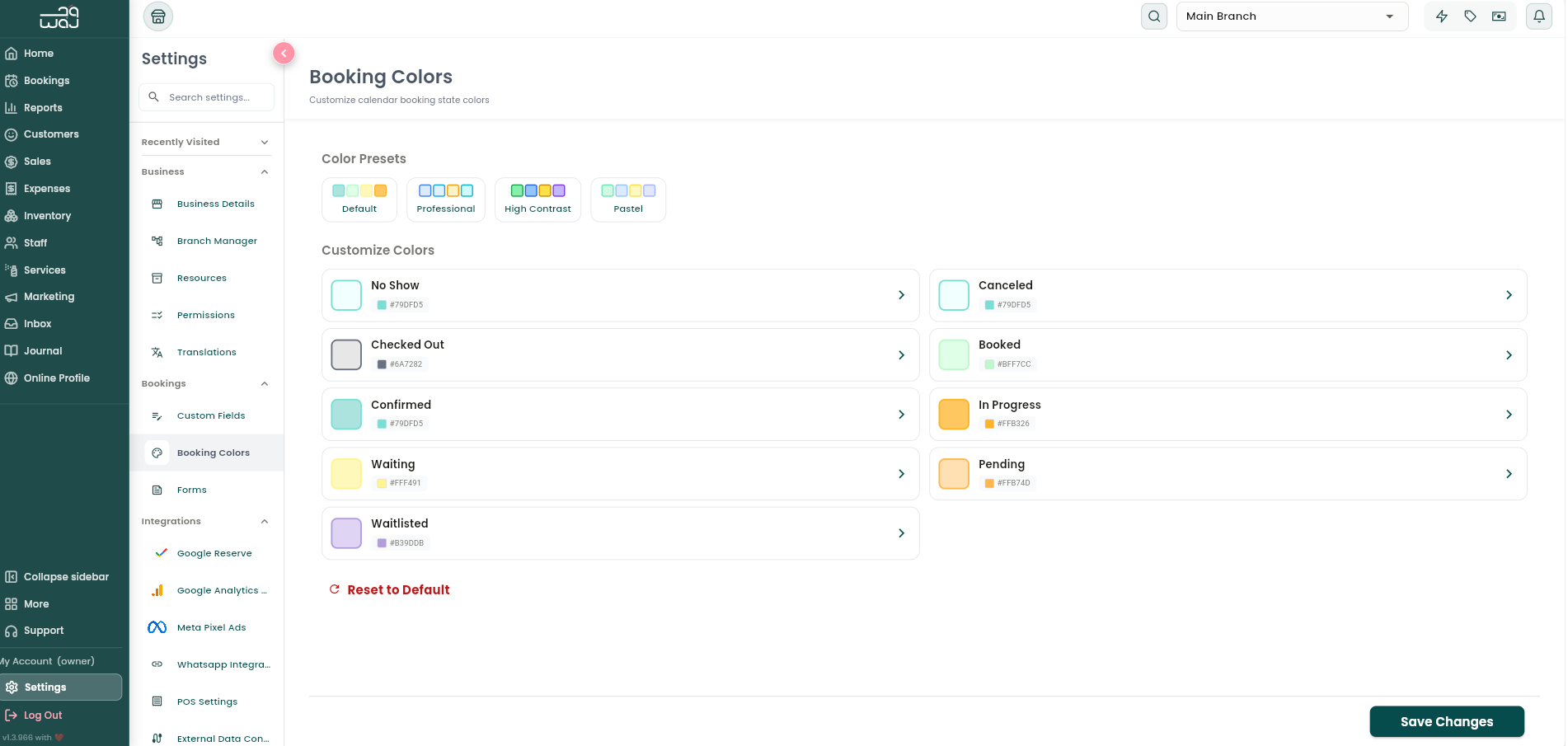
Every appointment status has its own calendar color, configurable at Settings → Booking Colors (or choose a ready-made preset palette). Defaults:
- Status: Confirmed — Default color: Teal / mint
- Status: Booked — Default color: Light green
- Status: Waiting — Default color: Yellow
- Status: In Progress — Default color: Amber
- Status: Pending — Default color: Light orange
- Status: Waitlisted — Default color: Lavender
- Status: Checked Out — Default color: Grey
- Status: Cancelled / No Show — Default color: Washed-out
Getting around the calendar
- Tap the date selector to jump to any date, or swipe to move a day at a time.
- A live status indicator shows the calendar is connected in real time — new online bookings and updates from other devices appear automatically, no refresh needed.
- Tap an empty slot to open a quick menu with Create Booking or Block Time.
- Tap an existing appointment to open its details; if it's already checked out, tapping it opens the sale receipt instead.
- Drag and drop an appointment to reschedule it to a new time or staff member, or drag the bottom edge to resize it and change its duration. Both save automatically and are recorded in the appointment's history.
- Tap a blocked time to view or edit it.
- Appointments snap to a 15-minute grid, and a new booking defaults to 30 minutes long.
Follow WAJ on Google
Add WAJ as a preferred source to see more of our articles in your Google Search results, marked with a "preferred" badge.