
Dynamic Pricing Rules
Overview
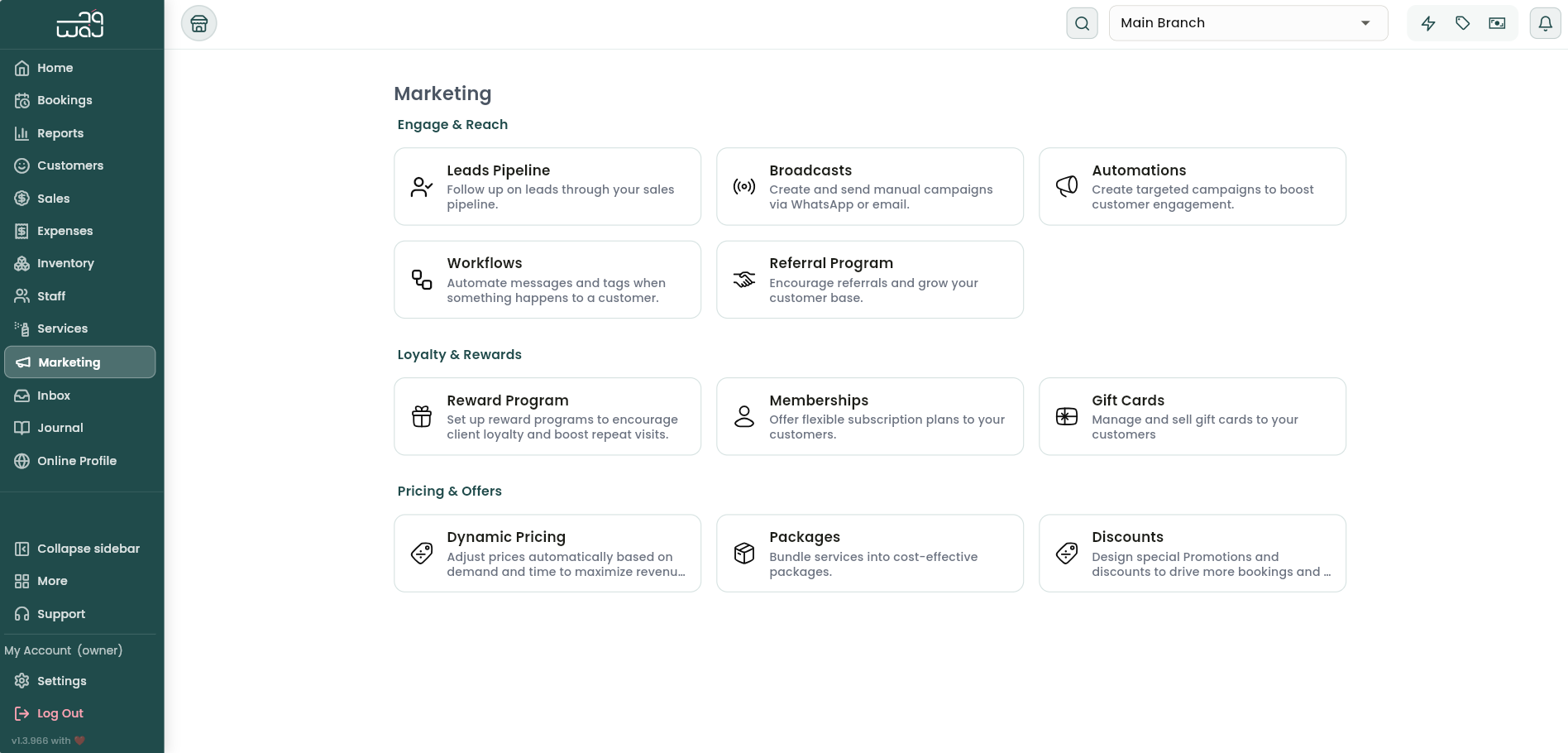
Dynamic Pricing automatically raises or lowers your prices at specific times to help manage demand — discount your quiet periods, or charge more during your busiest hours. Find it under Marketing → Pricing and offers → Dynamic Pricing, alongside Packages and Discounts.
Creating a rule
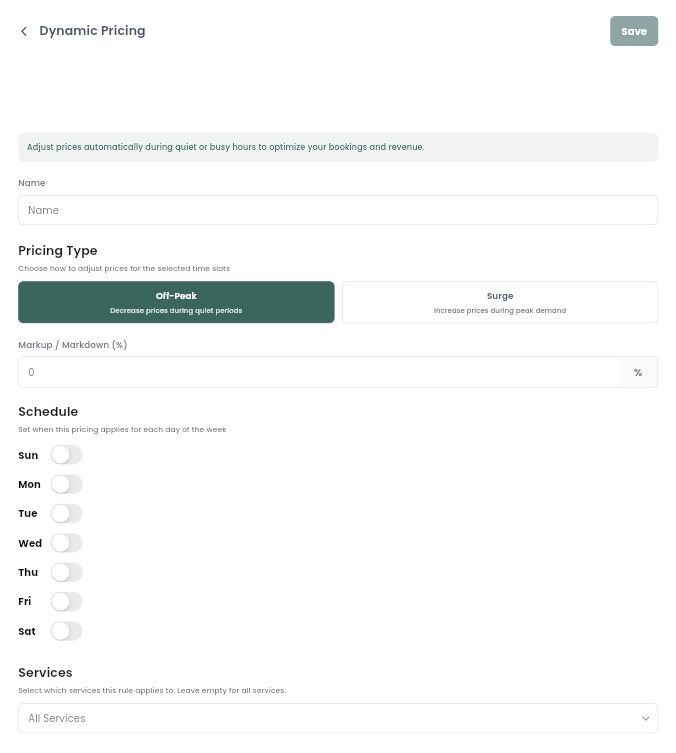
Tap Add Rule and set:
- A name for the rule.
- The pricing type — Off-Peak to decrease prices during quiet periods, or Surge to increase them during peak demand.
- A percentage to adjust by.
- A schedule — turn on the days it applies to, then set a start and end time for each. You can add multiple time ranges to the same day (for example, a lunch dip and a separate late-afternoon window).
- Which services it applies to, or leave this empty to apply the rule to every service.
You'll need a name, a percentage, and at least one time range before you can save.
How rules apply
Rules match by day, time, and service (and staff member, if you've scoped it that way). If more than one rule could apply to the same booking, the most specific rule wins: a rule scoped to a particular service beats one that applies to all services, and if two rules are equally specific, the one with the higher percentage takes priority.
Off-Peak rules subtract the percentage from a service's base price (it will never go below zero); Surge rules add the percentage on top. The "base price" here is whatever the price already is after any other offer or discount has been applied.
Clients see the adjusted price up front when booking, so there are no surprises later. On the booking screen, an affected service shows a small badge — green "−N% Off-Peak" or red "+N% Surge" — so your team can see at a glance why a price has changed.
Managing rules
On the Dynamic Pricing screen you can edit a rule's name, type, percentage, schedule, or services, toggle a rule on or off, or delete it. Rules can be turned off temporarily without deleting them, which is handy for seasonal pricing.
Follow WAJ on Google
Add WAJ as a preferred source to see more of our articles in your Google Search results, marked with a "preferred" badge.