
Staff Profiles and Team Management
Overview
Staff is your team roster — everyone who works at your business, their profile, the services they perform, their pay setup, their permissions, working hours, and time off.
Where to find it
Staff in your navigation (its exact position depends on your business type and any menu customization).

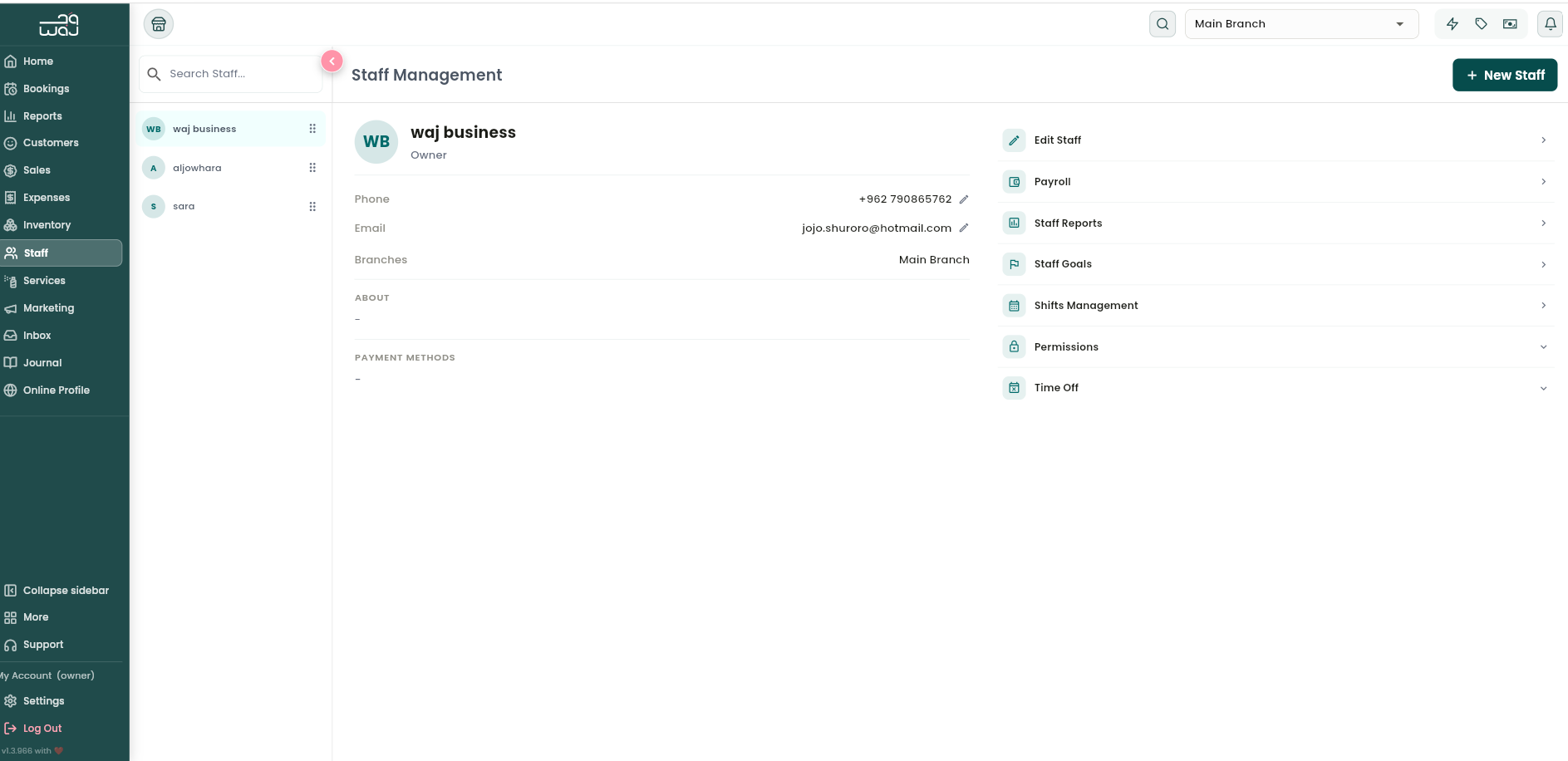
The staff list
The list shows everyone active at your currently-selected branch, with a search box to filter by name. On tablet and desktop, selecting a staff member opens their profile in a side panel without leaving the list; on mobile, tapping opens their full profile. You can drag rows to set your own display order.
Adding a staff member
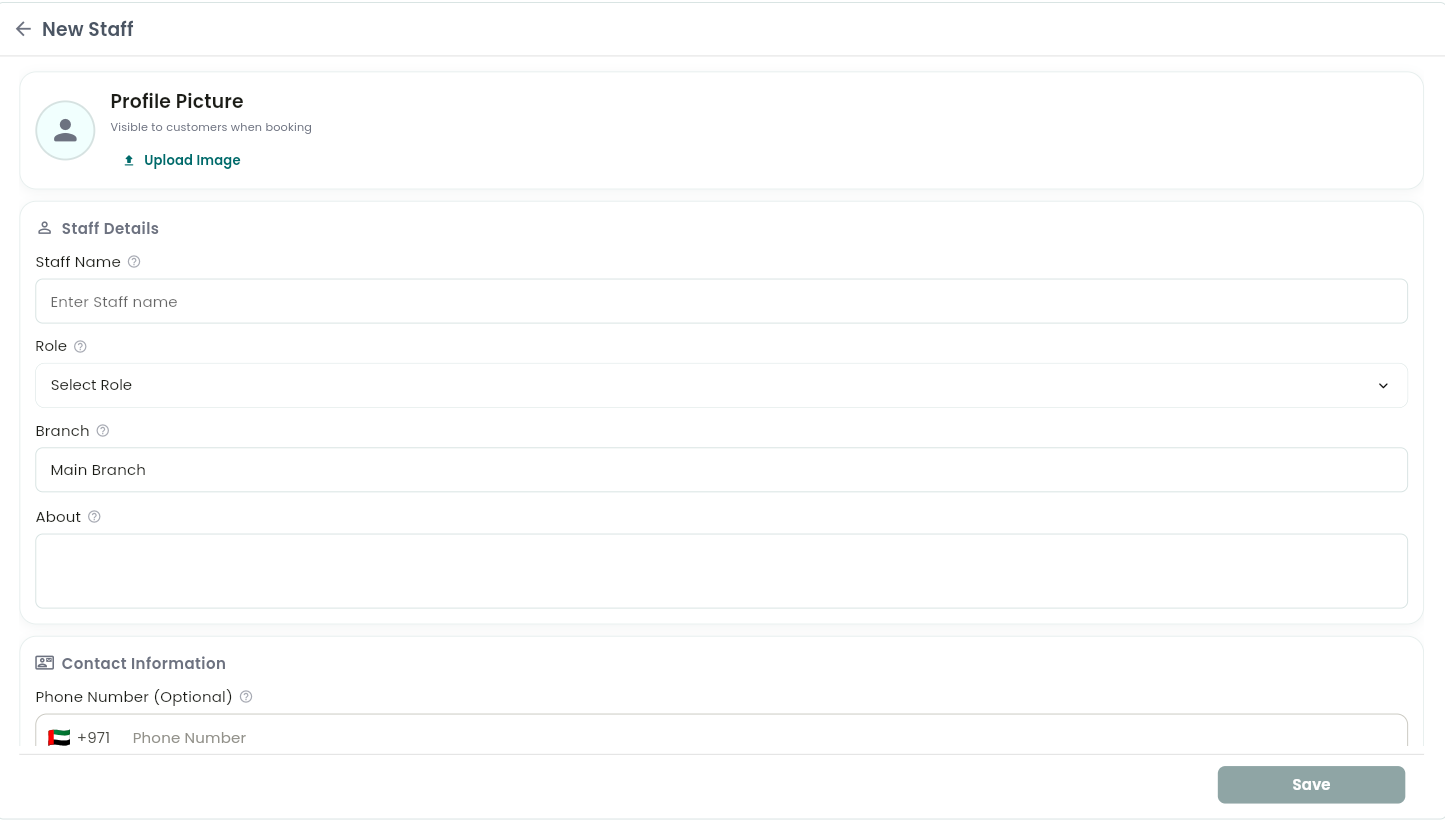
Tap New staff. The form is organized into sections:
- Profile photo — optional; customers see this when they book online.
- Staff details — Name (required); Role (a descriptive label: Staff, Receptionist, Specialist, Administrative Staff, Service Provider, or Owner — this label doesn't by itself control what the person can do in the app; see Roles and Permissions); Branch(es) — pick which branch or branches this person works at; About — an optional bio or note.
- Contact information — an optional Phone number (with country code) and Email.
- Work & Services — Provides services toggle (turn on for anyone who performs bookable services, which reveals a Service Categories picker; turn off for receptionists, admin staff, or owners who don't take bookings) and Payment method(s) (how this staff member is paid).
Tap Save once you've made any change.
Staff profile
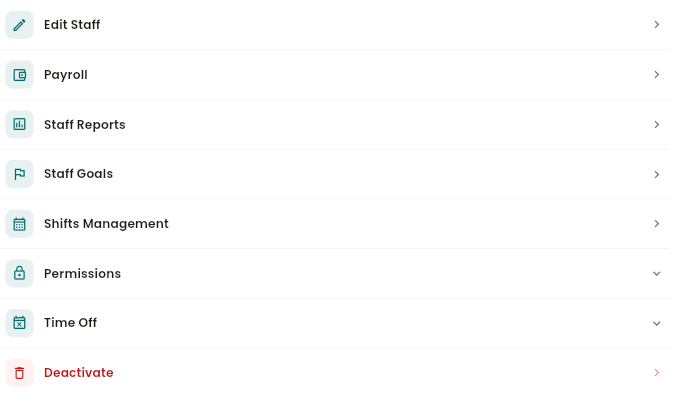
Opening a staff member's profile shows their photo, name, role, and active status, along with editable contact details, branches, bio, payment methods, and (if they provide services) their assigned services. From here you can:
- Edit staff — reopen the same form, pre-filled.
- Payroll — open their payroll dashboard.
- Staff Reports — an individual performance report (bookings, revenue, and more) for a date range you choose.
- Staff Goals — set, view, or edit a performance target.
- Shifts Management — their working-hours schedule.
- Permissions — view or change their Permission Level (an owner-only action).
- Time Off — add or view time off.
- Deactivate — soft-deletes the staff member.
Deactivating, reactivating, and deleting
Deactivating a staff member removes them from active rosters and online booking, but keeps their historical bookings, payroll, and reports intact — nothing is lost. A deactivated profile becomes view-only, with Reactivate as the only available action. Your business Owner can't be deactivated from this screen.
Notes & limitations
A staff member must belong to at least one branch. Profile photos are visible to customers during online booking.
Follow WAJ on Google
Add WAJ as a preferred source to see more of our articles in your Google Search results, marked with a "preferred" badge.