
Customizing Your Navigation Menu
Overview
You can control which screens appear in your WAJ menu, and where they show up, separately for desktop and mobile. This lets you put the tools you and your team use most within easy reach. Go to Settings → Account → Customize Menu to open the editor: on a larger screen (tablet or laptop) it shows your menu options with a live preview, while on a phone it opens as its own screen.
Desktop vs. mobile layouts
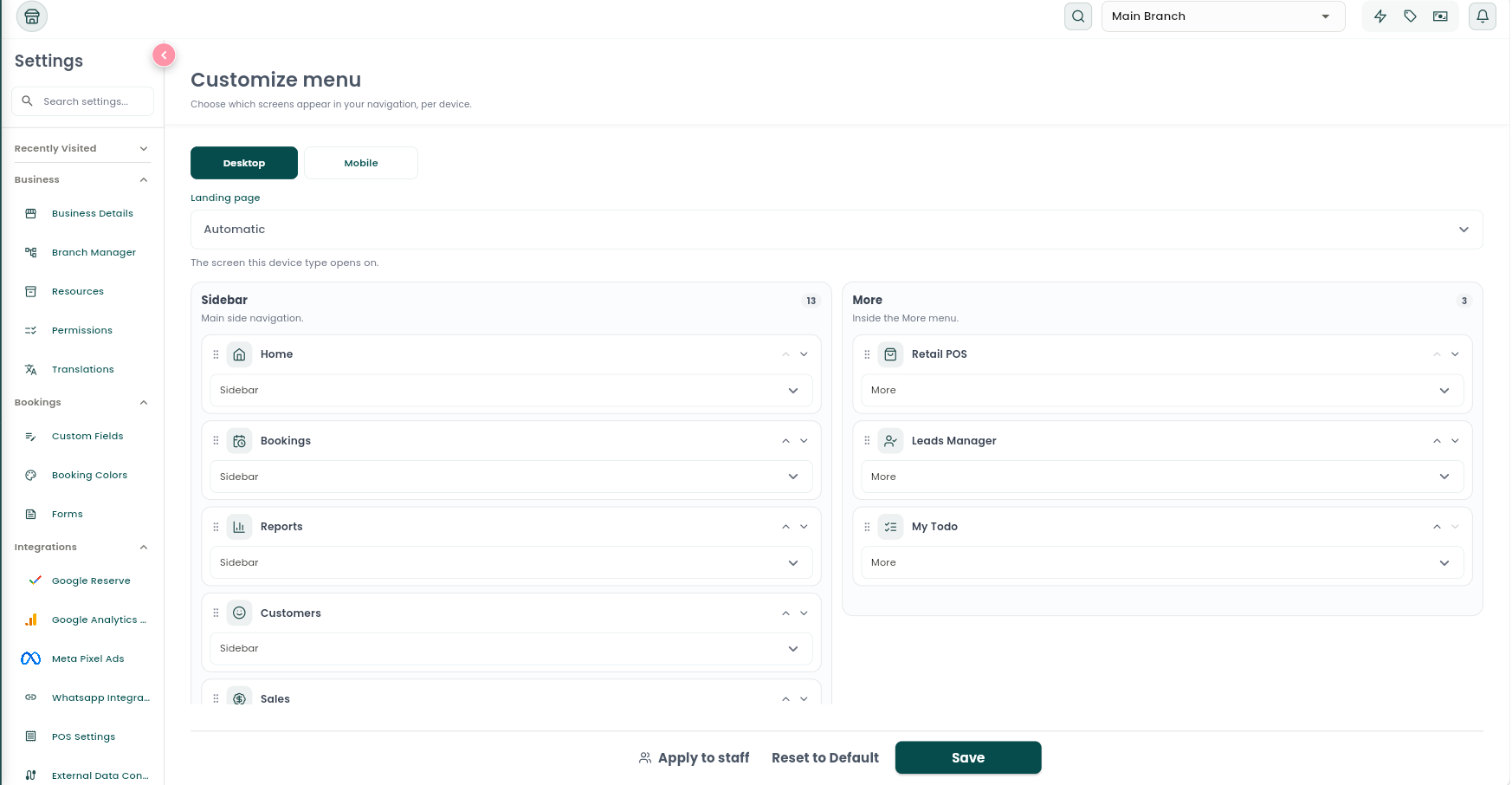
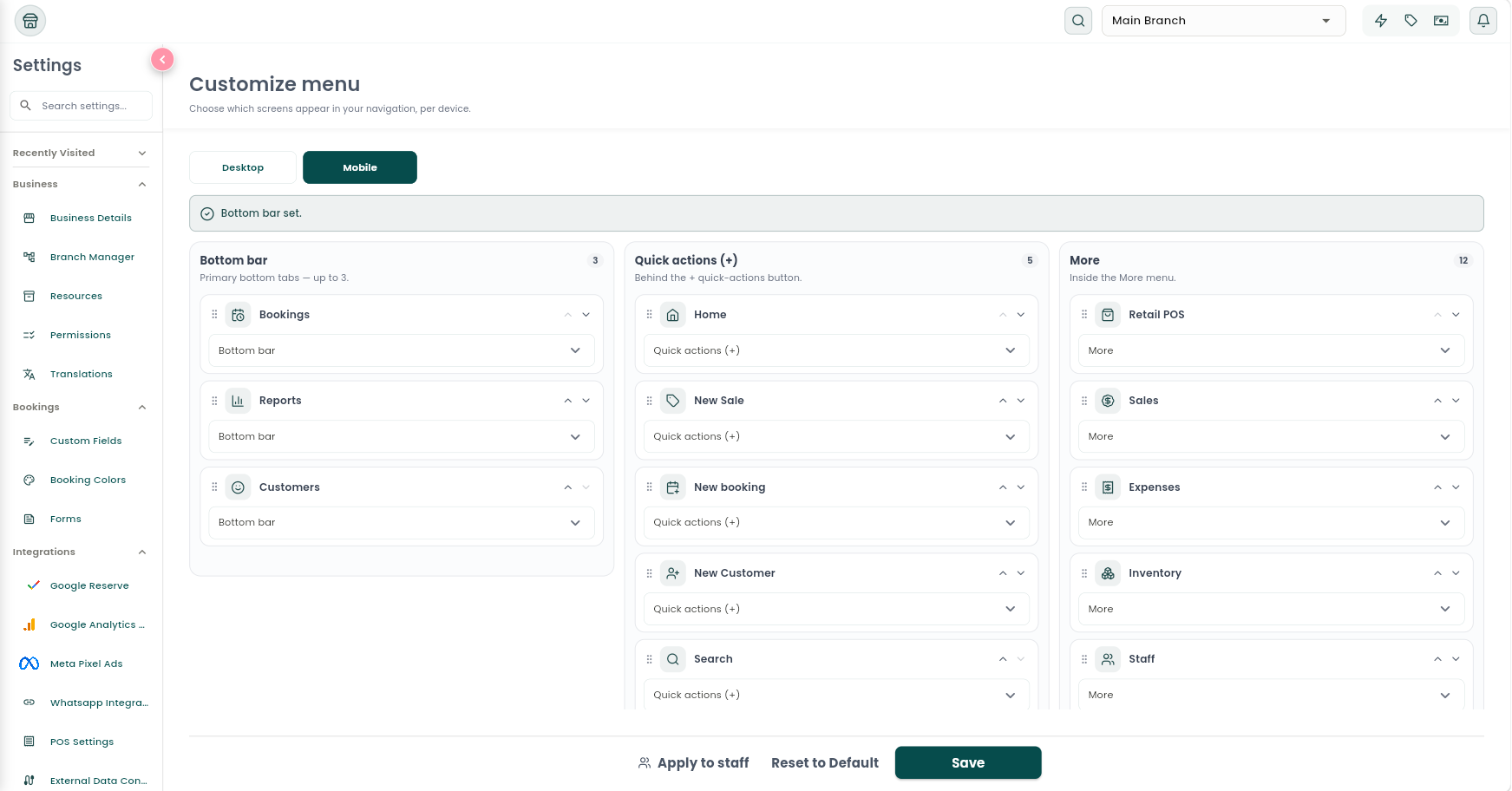
The editor has two tabs — Desktop and Mobile — because you and your team may use WAJ differently depending on the device. Each screen, like Bookings, Customers, or Reports, can be placed in a different spot on each one.
- On desktop and tablet, screens are organized into a Sidebar and a More section for less-used items.
- On mobile, screens are organized into a Bottom bar, a Quick actions menu (the + button), and a More section.
To move an item, you can:
- Use the dropdown on its card to send it to a different section.
- Drag and drop it into place (press and hold to lift it on mobile).
- Use the up/down arrows to reorder items within a section.
On desktop and tablet, you can also choose a Landing page — the screen you land on when you first open WAJ. Leave it set to Automatic and WAJ will pick a sensible screen for your business type. If you set a specific landing page and later lose access to it (for example, a permission is removed), WAJ automatically switches you back to Automatic.
The bottom-bar rule
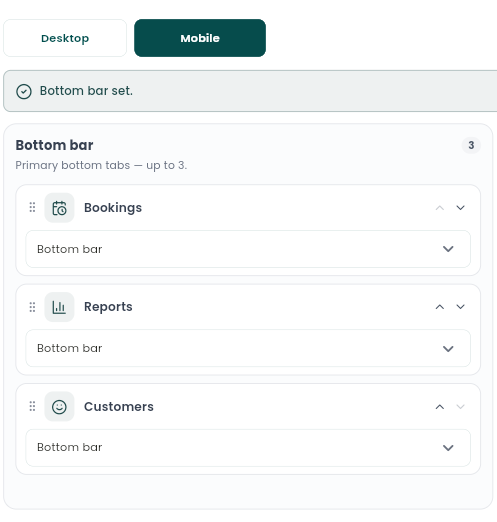
On mobile, your Bottom bar must hold exactly 3 items — no more, no fewer. By default, service-based businesses see Bookings, Reports, and Customers, while retail businesses see Retail POS, Reports, and Customers, but you're free to swap in whatever fits your workflow as long as you keep exactly 3.
As you make changes, WAJ tells you where you stand:
- A green "Bottom bar set." message means you're ready to save.
- A red message tells you if you have too many ("The bottom bar can hold up to 3 items") or too few ("Bottom bar has [count] items. It must hold exactly 3 to save.").
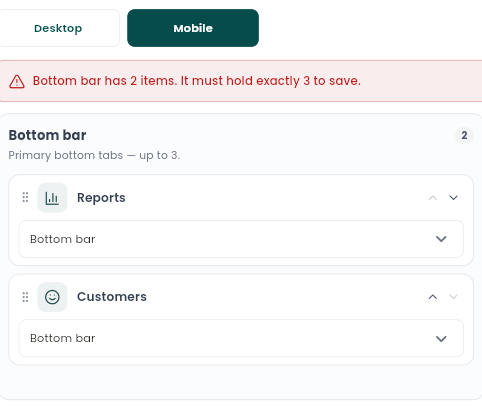
You won't be able to save your layout, or apply it to your team, until the bottom bar has exactly 3 items.
Other things worth knowing
- Some actions — New Sale, New Booking, New Customer, and Search — only exist on mobile, as quick actions. You can move them between Quick actions and More, but they don't have a desktop equivalent.
- WhatsApp only appears in the menu when you're using WAJ in a web browser.
- Your business type affects what's available and where things sit by default. For example, salons, spas, clinics, and gyms see Home in their menu, while retail-style businesses see Retail POS in its place.
- You won't find a way to hide a screen outright — what you can access is controlled by your permissions. If a screen isn't relevant to your role (for example, you don't have access to Inventory or customer profiles), it simply won't appear as something to arrange.
- AI Chat, Cash Register, and Waitlist aren't part of this menu editor — they always appear in their own fixed spot (such as the + menu on mobile or a top-bar button on desktop), based on your permissions.
Applying your layout to your team
Only the account owner can push a navigation layout out to staff. From the Customize Menu screen:
- Tap Apply to staff.
- Select the staff members you want to update (you won't see yourself in this list).
- Confirm the prompt, which reminds you this will overwrite the selected staff members' current menu layout.
You'll see a confirmation once it's applied. This sends whatever layout you currently have on screen, even if you haven't tapped Save yet, so it's worth double-checking your arrangement before applying it to others. The same 3-item bottom-bar rule applies here too.
Resetting to default
Tap Reset to Default to immediately restore WAJ's recommended layout for your business type, discarding any custom arrangement; you'll see a confirmation that your layout was reset. When you're happy with your changes, tap Save — the button stays disabled until your bottom bar has exactly 3 items.
Notes & limitations
Only the account owner can apply a layout to staff. The bottom bar on mobile must always hold exactly 3 items to save or apply a layout — this validation cannot be bypassed.
Follow WAJ on Google
Add WAJ as a preferred source to see more of our articles in your Google Search results, marked with a "preferred" badge.