
AI Connectors: Use WAJ from Claude, ChatGPT and other AI apps
Connect WAJ to Claude, ChatGPT, Cursor and other AI apps, approve what they can do, and review or revoke access.
Overview
AI connectors let you use WAJ from AI apps such as Claude, ChatGPT, Cursor and Claude Code. Once connected, you can ask about your bookings, clients, staff and reports in plain language, and ask the AI app to make changes for you, such as blocking time, moving a booking, adding a service or building a marketing workflow.
The AI app acts as you, with the same access your WAJ role gives you. The AI app asks you before every change, and bigger changes, such as bulk updates, merging clients, imports and anything customers will see, are never applied directly: they wait in WAJ until you confirm them.
Before you start
The business owner must turn on AI connectors once for the business (step 1).
Your WAJ role needs the WAJ AI permissions in Settings → Permissions: Access AI data to look things up, and Perform AI actions to make changes.
You need an account with the AI app. In Claude, custom connectors are under Settings → Connectors; on Claude Team and Enterprise plans, an organization owner may need to add the connector first. In ChatGPT, they are under Plugins → Add.
Step 1: Turn on AI connectors (owner)
Go to Settings → Integrations → AI connectors (MCP), or type "AI connectors" in the settings search.
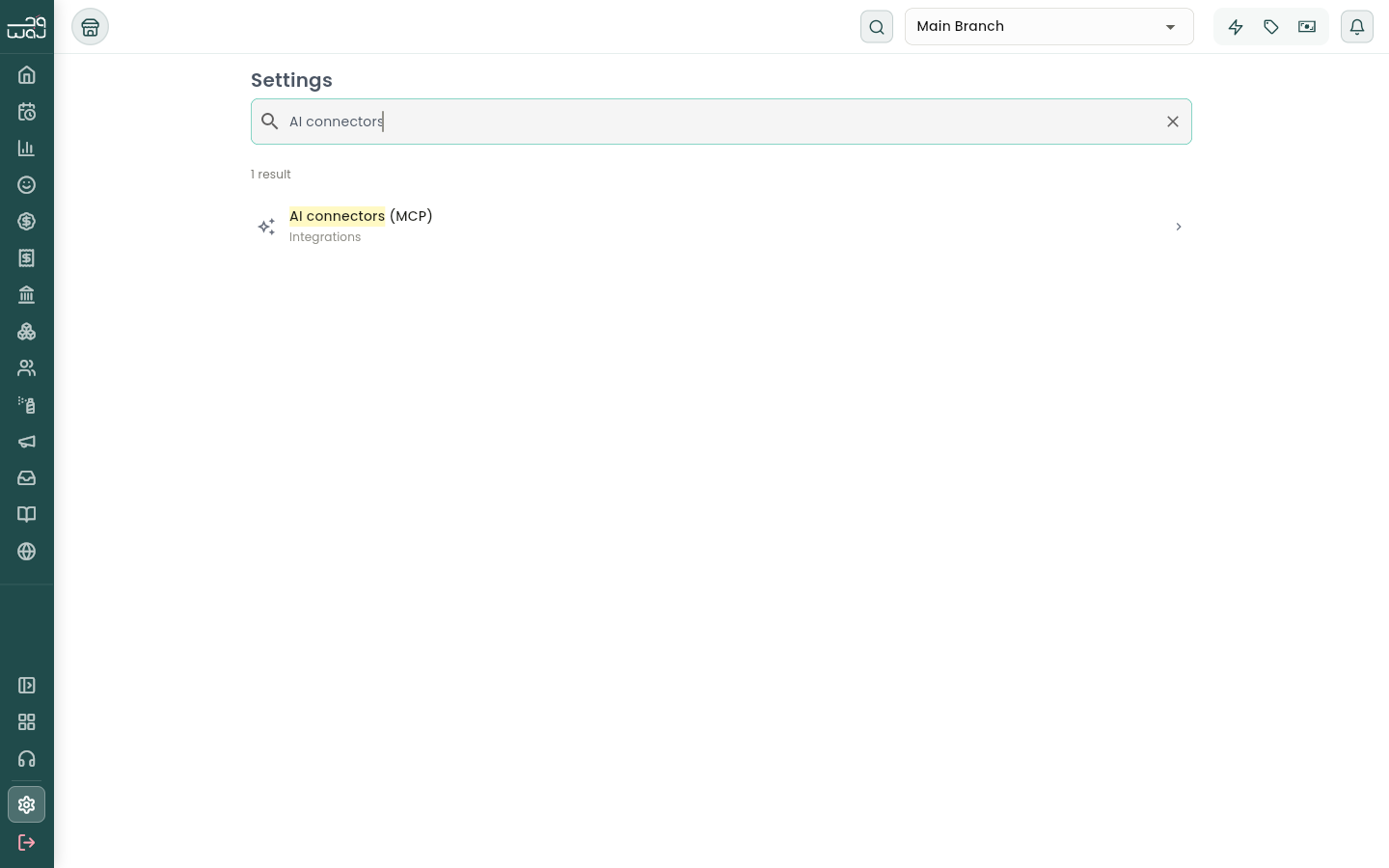
Turn on Enable AI connectors. Only the business owner can change this switch.
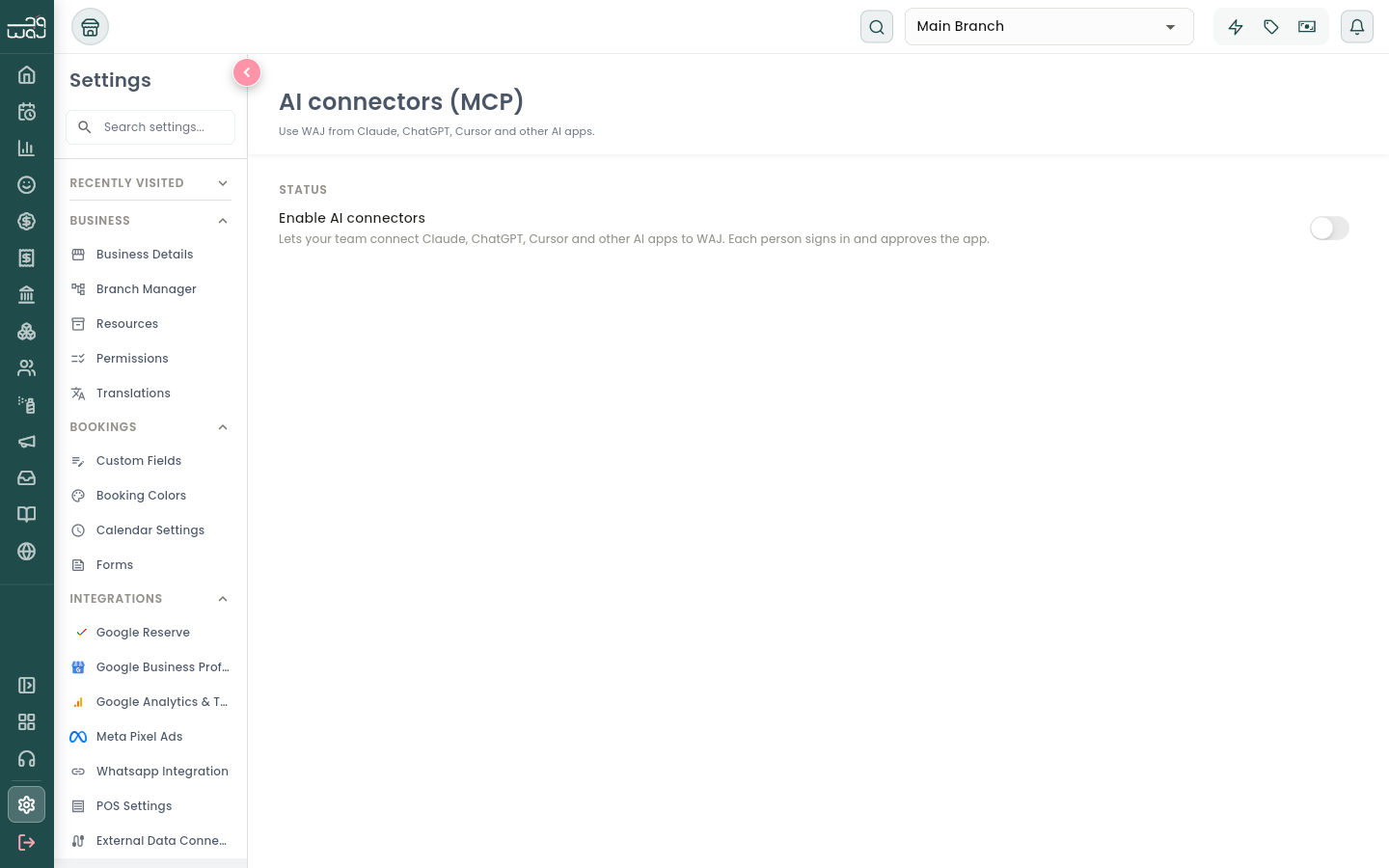
Once it's on, the screen shows the Server URL to paste into your AI app, short instructions for each app, your AI approvals, and the list of Connected apps. Tap the copy icon to copy the URL.
Step 2: Add WAJ to Claude
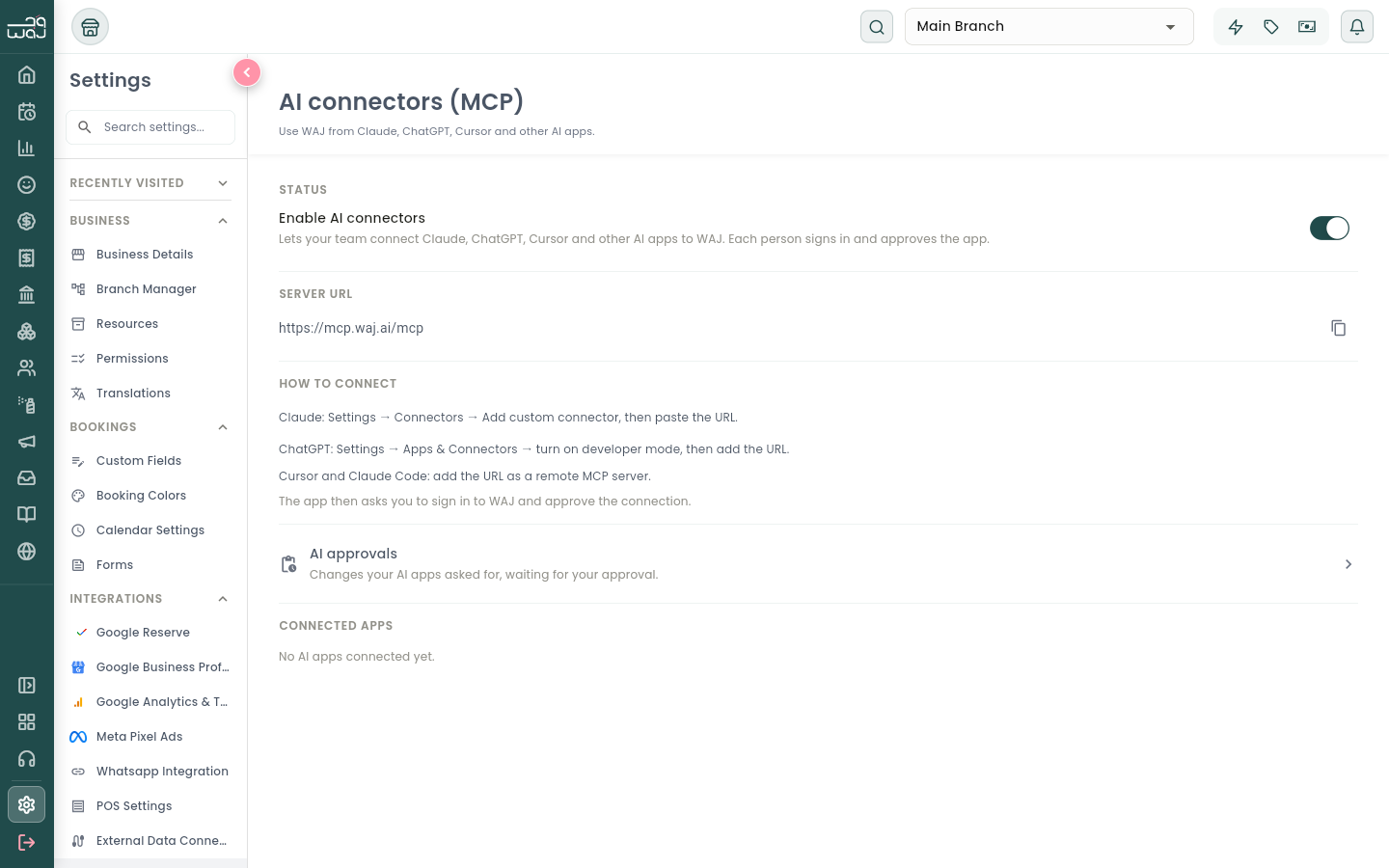
In Claude, open Settings → Connectors.
Select Add custom connector.
Enter WAJ as the name and paste the server URL: https://mcp.waj.ai/mcp
Select Add, then Connect next to WAJ.
Use the full URL, including /mcp at the end. The address without it won't connect.
Step 3: Sign in and approve
Claude opens WAJ in your browser. Sign in with your usual WAJ account, then check the connection request:
Business: the business the AI app will work in.
Signed in as: the WAJ account it will act as.
Access: choose Read only to let it look things up without changing anything, or Read and make changes to also let it make changes. Bulk changes, merges and imports still wait for your approval.
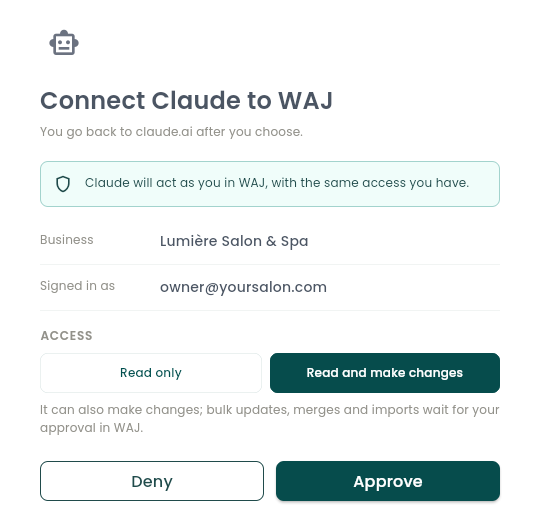
Select Approve. You go straight back to Claude, and WAJ appears in your connectors list.
Step 4: Use WAJ in a chat
Start a new chat in Claude and make sure WAJ is turned on in the tools menu. Then ask in your own words, for example:
"How did this month compare with last month?"
"Who are my top 10 clients by spend this year?"
"Which staff member had the most bookings last week?"
"Block Sara's calendar tomorrow from 2 to 4 pm for training."
"Find duplicate client records and merge them."
"Export this month's invoices to a CSV file."
Claude asks before it runs a tool that makes changes, so you can check each change in the chat first.
Use WAJ in ChatGPT
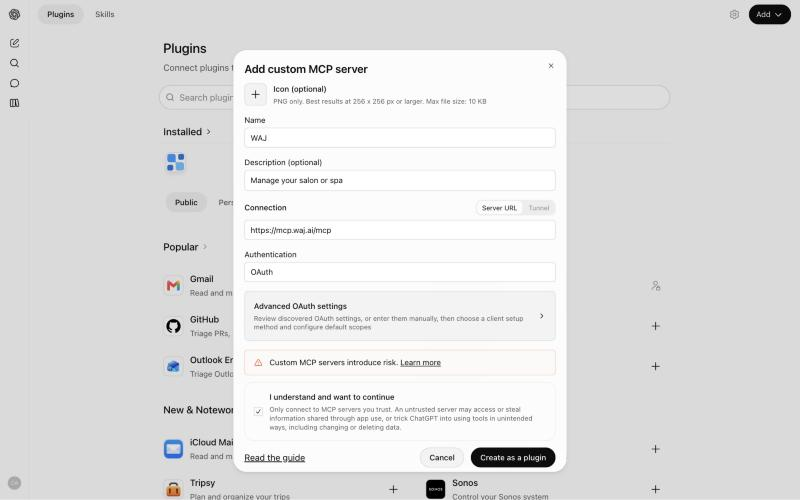
In ChatGPT, open Plugins and select Add → Add custom MCP server.
Enter WAJ as the name and paste the server URL: https://mcp.waj.ai/mcp. Leave Authentication on OAuth.
Read the notice, tick I understand and want to continue, and select Create as a plugin.
Select Connect WAJ, then sign in to WAJ and approve the connection, just as in step 3.
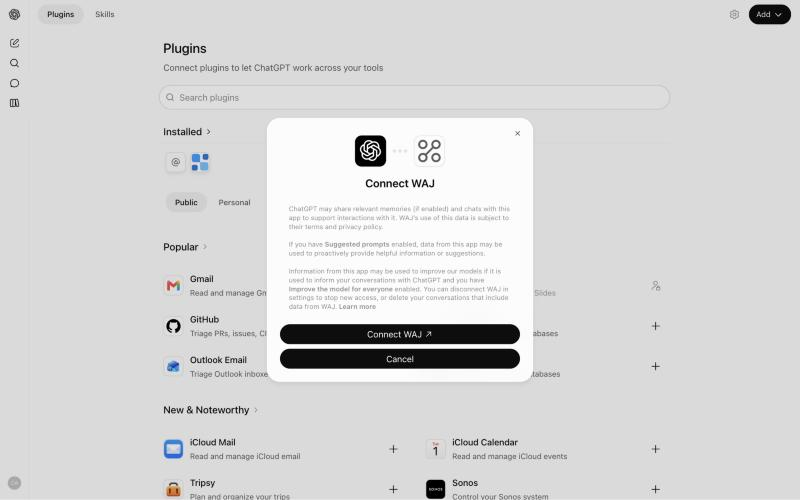
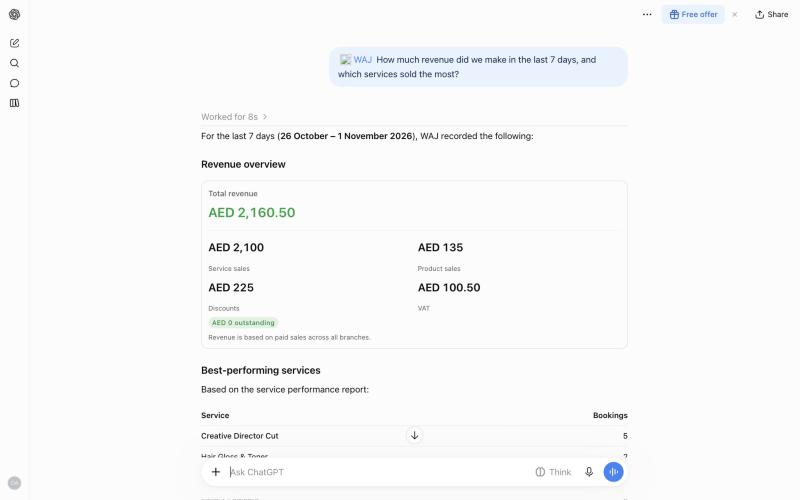
In a new chat, select + and choose WAJ, then ask your question. Before any change, ChatGPT shows Allow ChatGPT to use WAJ? with what will change; select Allow once to go ahead or Deny to stop.
Use WAJ in Cursor or Claude Code
Claude Code: run claude mcp add --transport http waj https://mcp.waj.ai/mcp, then run /mcp in Claude Code and choose WAJ to sign in.
Cursor: open Settings → MCP, add a new server with the URL https://mcp.waj.ai/mcp, and sign in when Cursor asks.
Each app opens WAJ in your browser to sign in and approve the connection, just as in step 3.
What the AI app can do
Look things up
Reports: business performance, staff performance and payroll, service and category performance, client and retention analytics, inventory, product usage, invoices, leads, and any report from the WAJ reports list.
Bookings: find bookings by client, staff or date, find free times for a service, and see the waitlist.
Clients: find clients by name, phone, email or tag, see a client's profile, balance and points, and find duplicate records.
Your setup: branches, staff, working hours and HR records, blocked time, services and their options, categories, products, packages, memberships, gift cards, expenses, forms, discounts, campaigns, reviews, audiences, message templates, marketing workflows and business settings.
Help and exports: search the WAJ help docs, get an invoice as a PDF, and export any results to a CSV file.
Make changes (Read and make changes only)
Create bookings, move them, change their services or notes, and book from the waitlist.
Create and update services, categories, packages, membership plans, products and suppliers, and record stock changes.
Add and update staff, assign services, set working hours, block time, add time off, and correct attendance.
Add and edit clients, add notes, link or unlink client profiles, and send a form link.
Create and update leads, record expenses, create audiences and message templates, and build marketing workflows.
Changes that wait for your approval
Bulk updates to many clients at once, imports of clients and leads, and turning automated messages on or off for clients.
Merging duplicate clients, undoing a merge, and deleting a client or an expense.
Anything customers will see: sending a campaign, replying to a review, turning on a marketing workflow, and changing online booking, no-show deposit rules or service add-ons.
Changing staff roles and staff access.
Refunds, payouts and other money transfers are not available to AI apps.
Built-in workflows
WAJ comes with ready-made workflows that the AI app can run for you. In Claude, find them under + → WAJ; in Claude Code, type / and pick a WAJ prompt; in any app you can also just ask in your own words.
Sales analysis: revenue against the previous period, best and declining services, payment methods and money still owed.
Staff performance: revenue, bookings, booked versus scheduled hours and client retention per staff member.
Business trends: weekly revenue over the last 8 weeks, rising and falling services, new versus returning clients and next week's bookings.
Daily briefing: today's bookings by staff member, yesterday's sales, money owed and gift cards expiring this week.
Client retention: returning clients, how new clients hold up month by month, and clients at risk, with a win-back audience or workflow when you ask for one.
Stock check: out-of-stock and low-stock items, product sales by category and product cost per service.
Each workflow only reads your data, except client retention, which creates an audience or a workflow when you ask for one.
Approve changes in WAJ
When an AI app asks for a change that needs approval, it appears under Settings → AI connectors (MCP) → AI approvals. Each request shows which app asked, when, and exactly what will change. Select Confirm to apply it or Dismiss to drop it. Nothing changes in WAJ until you confirm.
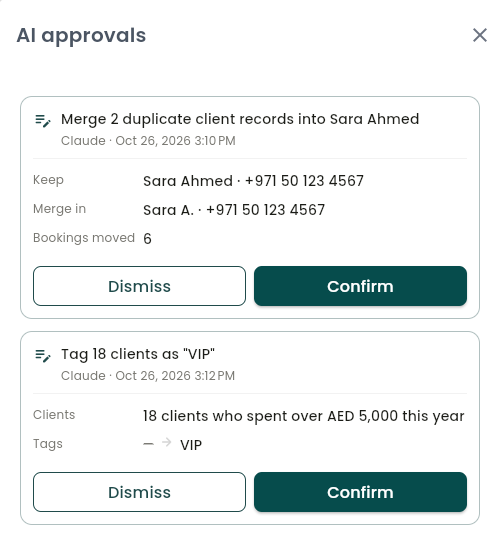
Requests expire after 24 hours. The AI app can check whether you approved, dismissed or let a request expire.
See and revoke connected apps
Connected apps lists every AI app connected to the business, with who connected it, its access level and when it was last used. Owners see everyone's connections; other staff see their own.
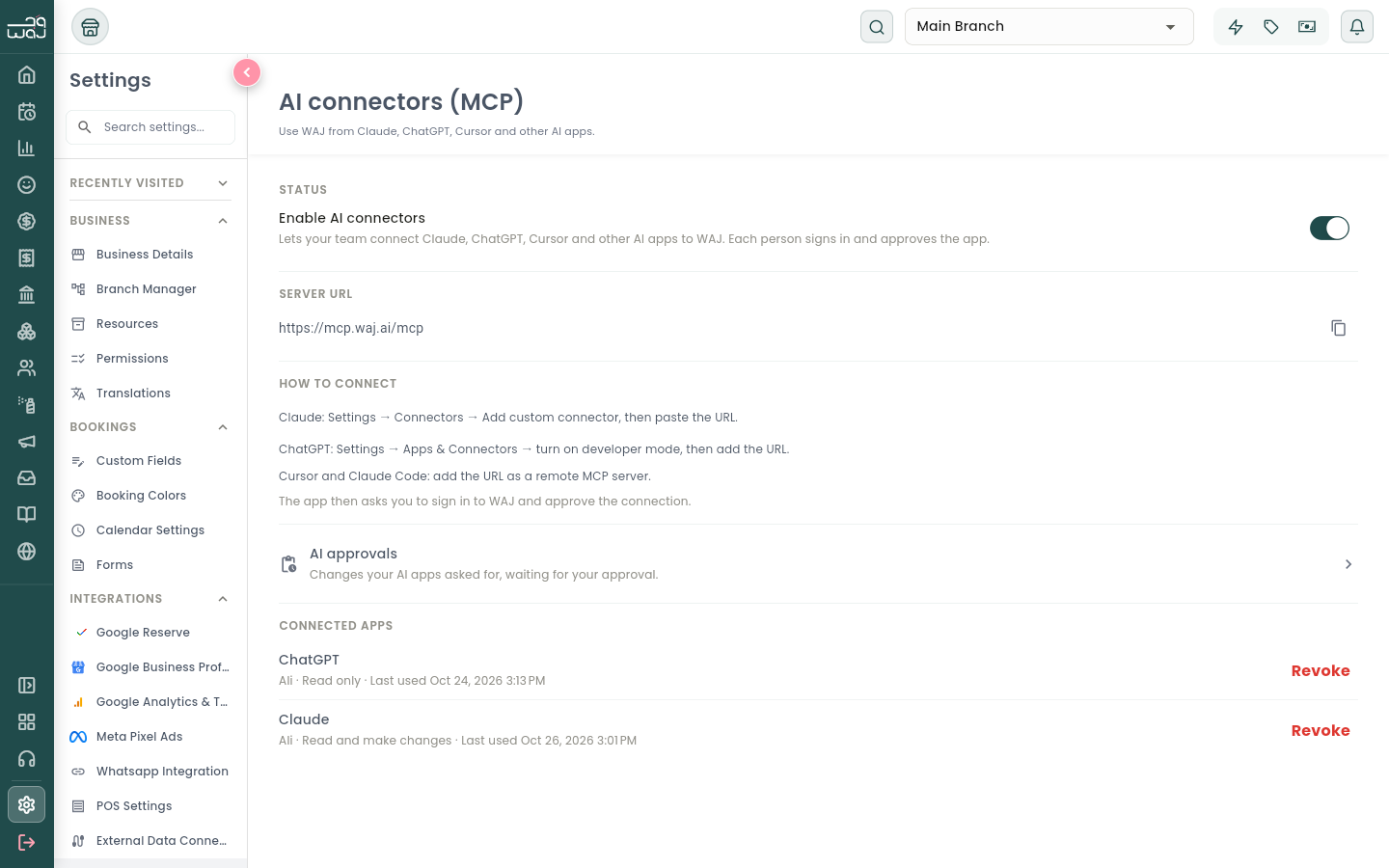
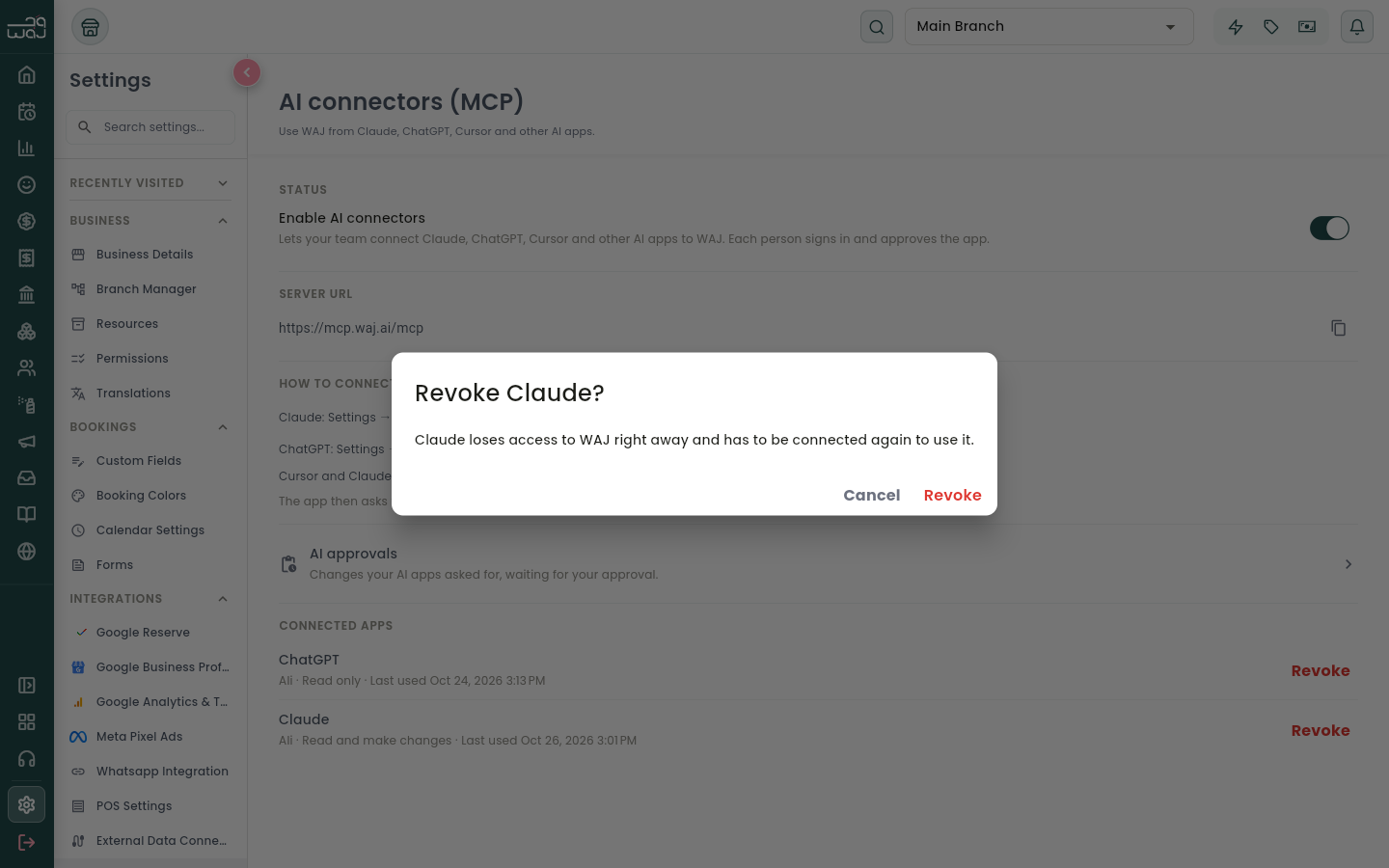
Select Revoke to cut an app off straight away. It has to be connected again before it can be used.
To stop every AI app at once, the owner can turn off Enable AI connectors. Connected apps stop working right away until it's turned back on.
Troubleshooting
"AI connectors aren't enabled for your business yet": the business owner needs to turn them on (step 1).
"Your role doesn't have access to WAJ AI": ask the business owner to turn on Access AI data (and Perform AI actions for changes) for your role in Settings → Permissions.
"This app isn't on WAJ's list of supported AI apps": WAJ only accepts connections from supported AI apps. Contact WAJ support if you think the app should be supported.
"This connection request is invalid or has expired": start again from your AI app.
The connector shows no tools, or can't connect: check that the URL ends in /mcp, that AI connectors are switched on, and that your role has access to WAJ AI. Then disconnect and connect again from the AI app.
Privacy
The AI app only receives what its requests return, such as the report or client list you asked for, and only for the business you approved. That data is then handled under the AI provider's own terms. You can revoke access at any time. See our privacy policy at waj.ai/privacy-policy.
Follow WAJ on Google
Add WAJ as a preferred source to see more of our articles in your Google Search results, marked with a "preferred" badge.