
AI Assistant
Overview
The AI Assistant is a built-in chat assistant that answers questions about your business — sales, bookings, customers — and helps you figure out how to use WAJ, all in natural language, right inside the app.
Where to find it
Mobile: tap the + quick-actions button, then AI Assistant. This tile can be hidden per staff member from Settings → Account → Customize Menu, so if it is missing check there first.
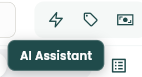
Tablet, web and desktop: an icon button in the top bar (the lightning bolt), labelled AI Assistant on hover. It appears on wider screens only.
Universal Search: when a search comes back with no results, the dialog offers to ask the assistant instead — press Enter and the assistant opens with your typed question already in the box.
Booking calendar: the + quick-action menu on the calendar also has an AI Chat shortcut.
The assistant opens as a side panel over whatever you were doing, so you don't lose your place. What you can access depends on your permission level — ask your business owner if you don't see it.
What it can do
Answer questions about your business data — things like "Show my sales today," "Top customers this month," or "Upcoming appointments." The assistant looks up your real business data and answers with numbers, laying results out as text and tables inside the reply. When an answer covers more rows than are readable in a chat message, it offers the full result as a downloadable file instead.
Guide you through how to use WAJ — things like "How do I add a new service?", "How do I manage staff schedules?", or "How do I create a booking?" These answers come from the WAJ Help Center, so the assistant walks you through the actual steps rather than guessing.
Suggest booking and sale add-ons. A related but separate feature — AI Recommendations — appears as a horizontal carousel of suggestion cards. It shows services, products, packages and memberships the customer might want to add, each with a confidence dot and percentage, and tapping a card adds it. You'll see it on a saved booking's details, in the Retail POS sale pane, and in the customer summary panel; it does not appear while you are still creating a booking.
When you open a new chat, the assistant shows a few suggested starting prompts based on what you have access to.
Using the chat
Type your question and send it, or tap a suggested prompt.
The response streams in live, word by word.
For data questions, you may see a brief "thinking" indicator while the assistant looks up your data, along with a collapsible explanation of its reasoning before it answers.
Follow-up suggestions appear as chips under the latest answer — tap one to keep going.
You can stop a response mid-stream with the stop button if you no longer need it.
Copy a single answer with the copy icon on the message, or copy the whole conversation from the chat header.
Chat history
Every chat is saved as a session. Tap the history icon to open Chat History, where you can:
Resume a past conversation by tapping it, or pull down to refresh the list.
Rename a session — from the pencil icon in the chat header, or the ⋮ menu on any row in the list.
Delete a session — swipe it away, or use ⋮ → Delete. WAJ asks you to confirm first.
On tablet and desktop the history list and the chat swap in place inside the same panel instead of opening a new screen.
Controlling who can use it and what they can access
As the account owner, you decide exactly what each staff permission level can do with the AI Assistant from Settings → Permissions → AI. There are four separate abilities, each set per permission level:
Access AI documentations — lets staff ask "how do I…" questions and get guidance on using WAJ.
Access AI data — lets staff ask questions about real business data (sales, bookings, customers) and get numbers and tables back.
Perform AI actions — reserved for letting the assistant act on staff's behalf rather than only answering. The assistant is read-only today, so turning this on does not currently change what it can do.
Access all AI features — grants full access across the assistant's capabilities.
A staff member only sees the AI Assistant, and only gets the suggested prompts and capabilities that match, based on which of these are turned on for their permission level. The business owner always has full access regardless of these switches.
Notes & limitations
If none of the four abilities are enabled for a staff member's permission level, they won't see the AI Assistant entry points at all.
The assistant reads; it does not write. It cannot create, edit or cancel a booking, change a price, or alter any record — every answer is a lookup. Do the change yourself in the app.
Answers about your business data respect your own access. A staff member asking about sales only ever sees what their account is allowed to see.
Depending on your plan, AI features may sit in an add-on. If the entry points are missing for everyone including the owner, and permissions look correct, check your subscription or ask WAJ support.
The AI Chat shortcut on the booking calendar is not permission-gated the way the other entry points are.
AI Recommendations is a separate feature from the AI Assistant chat and is not controlled by the four AI permissions.
Follow WAJ on Google
Add WAJ as a preferred source to see more of our articles in your Google Search results, marked with a "preferred" badge.