
Products & Stock
Overview
Products are the retail items and consumables a business stocks, things sold over the counter or used up during services. The Inventory area's Products tab shows everything held at the selected branch, including current stock levels.
Adding a product
New products are created by recording their first purchase rather than through a separate blank "add product" form: use Inventory → Purchase History → New Purchase for a single product (this can create the product on the fly), or Inventory → Stock Orders → New Stock Order for a multi-line purchase from one supplier.
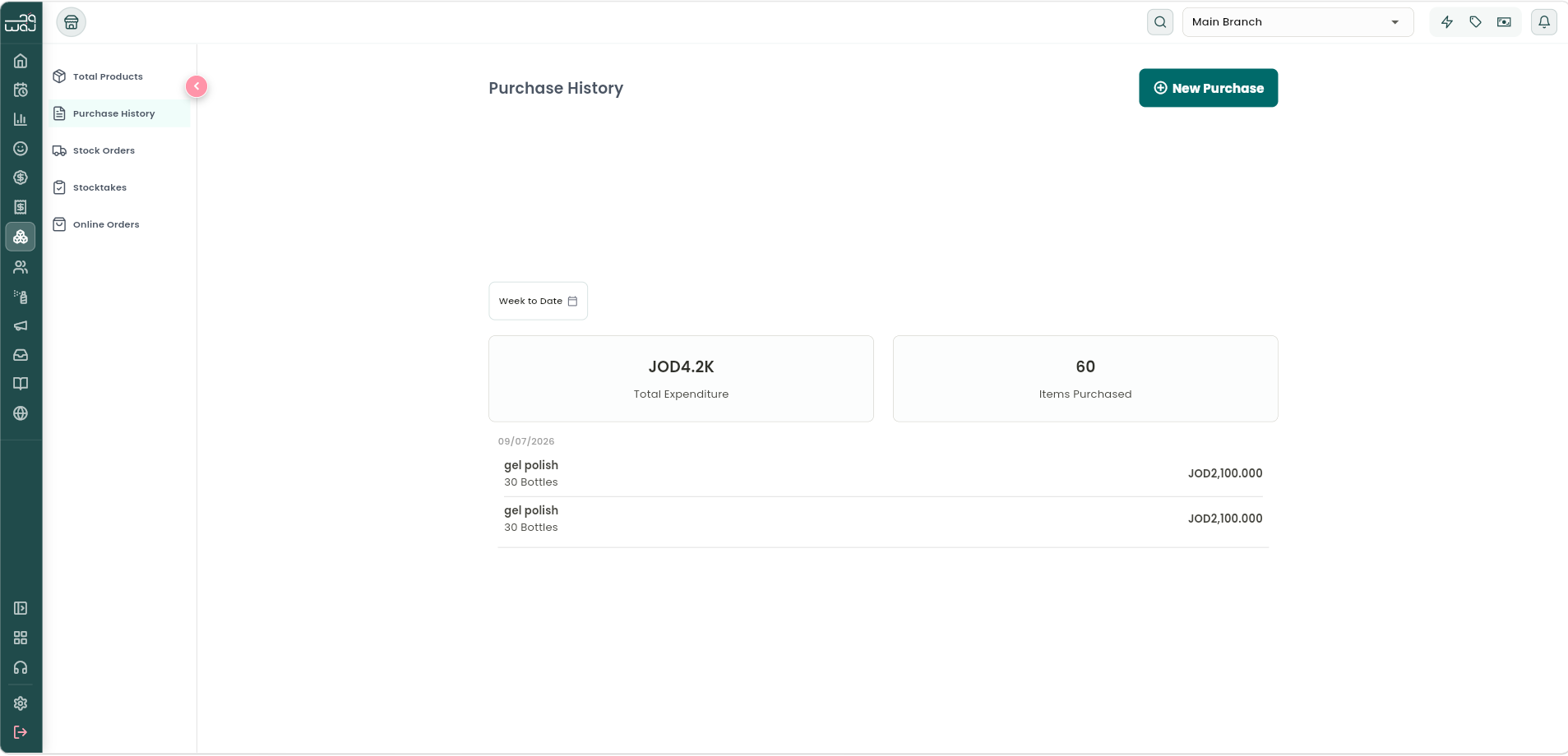
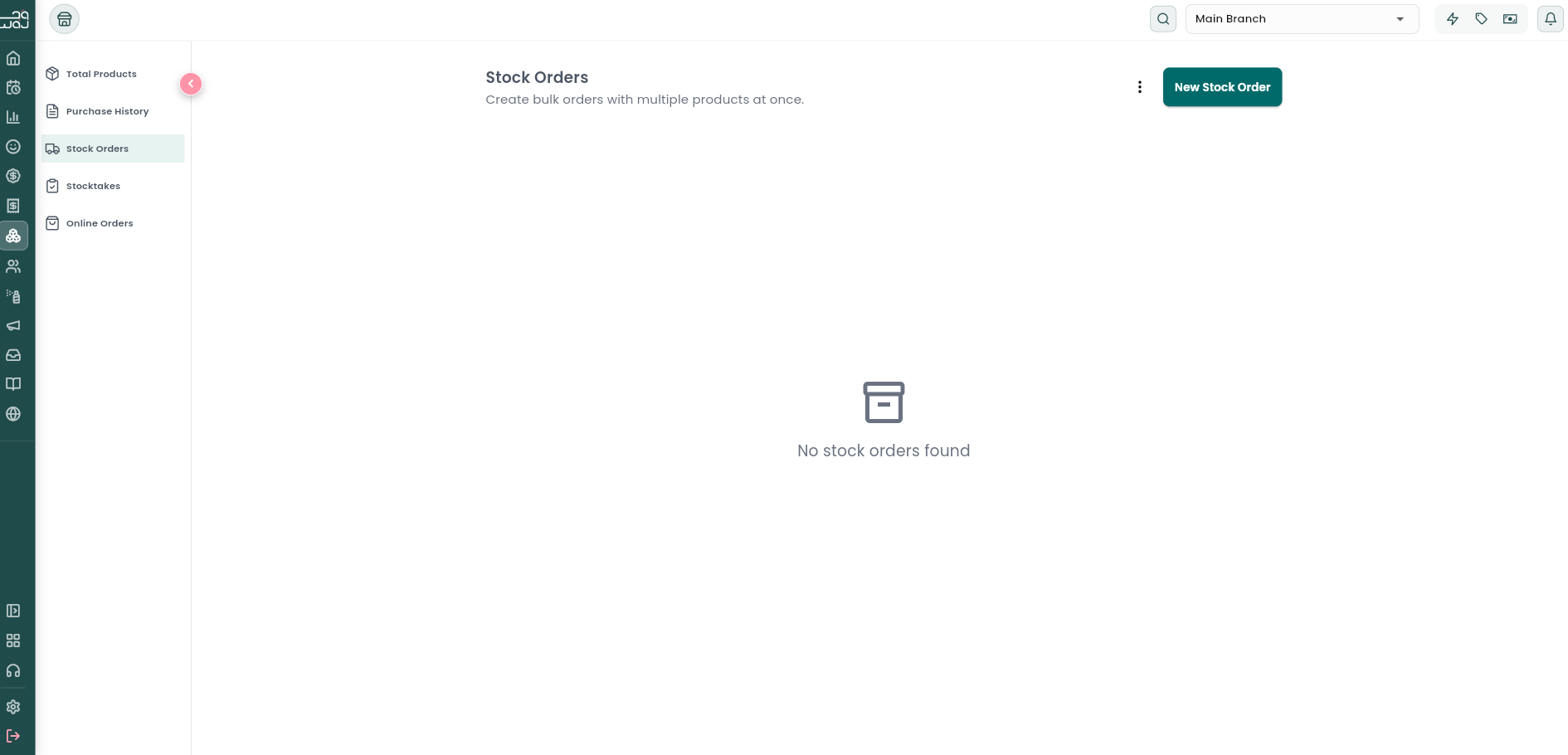
- While recording the purchase, fill in the product's basics: photo, name, category, description, barcode/SKU/UPC (SKU is auto-generated if left blank), and the cost (supply) price.
- Toggle "Enable retail sales" if customers can buy it directly (products not for retail are for in-house/professional use only, e.g. consumed during a service rather than sold). This reveals a retail price field with an auto-computed markup percentage, quick profit-margin shortcuts (+10/20/30/50/100%), and a per-product VAT override if it should differ from the business default.
- Pick a unit type (Bottles, Tubes, Pieces, Kilograms, Grams, Litres, Millilitres, Packs, Box, Can, Unit, or a custom unit). Sub-units can also be enabled, e.g. tracking a box of blister packs down to the individual pill.
- Assign a default supplier, choose a stock tracking mode, and, if tracking is on, set a Low Stock Level and a Reorder Quantity.
- Save. The quantity recorded becomes the product's opening stock.
Stock tracking modes
- No Tracking: quantity isn't tracked at all.
- Simple: a running total quantity.
- Batch: individual batches with their own expiry dates, for products that can go off (see Inventory Management for batch and expiry detail).
Low-stock reordering
Each product can have a low-stock level and a reorder quantity. When stock falls to or below the low-stock level, the product is flagged as low so it can be reordered before it runs out, but the threshold is purely a flag/alert; it doesn't block a sale, and stock can go negative. Linking a product to a supplier speeds up creating stock orders, and a shortcut can generate a stock order pre-filled with everything currently below its low-stock level.
Editing products and stock behavior
Tap a product to view its details (current stock, pricing, supplier, and history) and edit any field. Stock decreases automatically the moment a sale is completed. That is, when payment is confirmed at checkout (Sales or Retail POS), not merely when an item is added to a cart or left as a draft. Stock increases again when a purchase, stock-take correction, or transfer-in is recorded.
Products used up during a service (e.g. color, developer) aren't deducted automatically just because the service was performed. There's no automatic link between a service and the products it consumes. To reflect what a service actually uses, that consumption needs to be recorded as a retail line at checkout or via the product's Update Stock action.
Importing and exporting products
The Inventory tools menu allows exporting the full product list to CSV, downloading a blank product template, and importing products from a CSV file. Importing previews the rows and creates suppliers as needed. Low-stock items can also be exported, or a ready-made low-stock reorder can be exported in one step.
Handling an online order
If the business has Product Delivery enabled (a business-wide setting), customers can order products for shipping or in-store pickup. Pickup is always available regardless of whether delivery is turned on.
Orders land in Inventory → Online Orders and move through Placed → Shipped / Ready for Pickup → Received, or Cancelled at any point before Received. Placing an order holds the stock (reserved, but not yet deducted), the actual stock deduction happens once the order is marked Received. Cancelling before that point releases the hold and triggers a full refund; an order can't be cancelled once it's already Received.
Follow WAJ on Google
Add WAJ as a preferred source to see more of our articles in your Google Search results, marked with a "preferred" badge.