
Getting Started: Onboarding Your Business
Overview
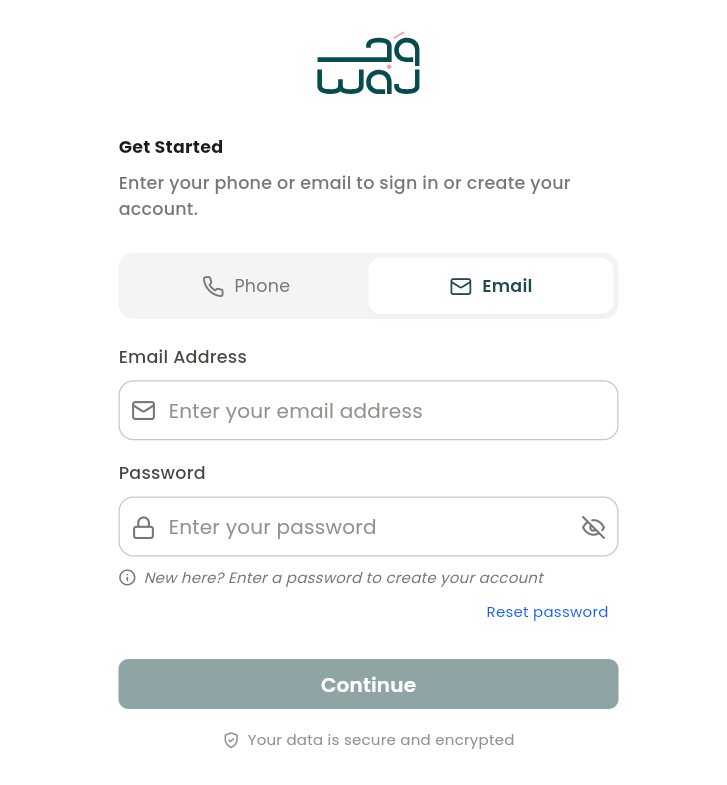
After you sign up, WAJ walks you through a short guided setup — about 2-3 minutes — before dropping you into the main app. A welcome screen confirms your sign-up and previews three steps: Business Info, Contact Info, and Website Theme.
Step 1: Business Info
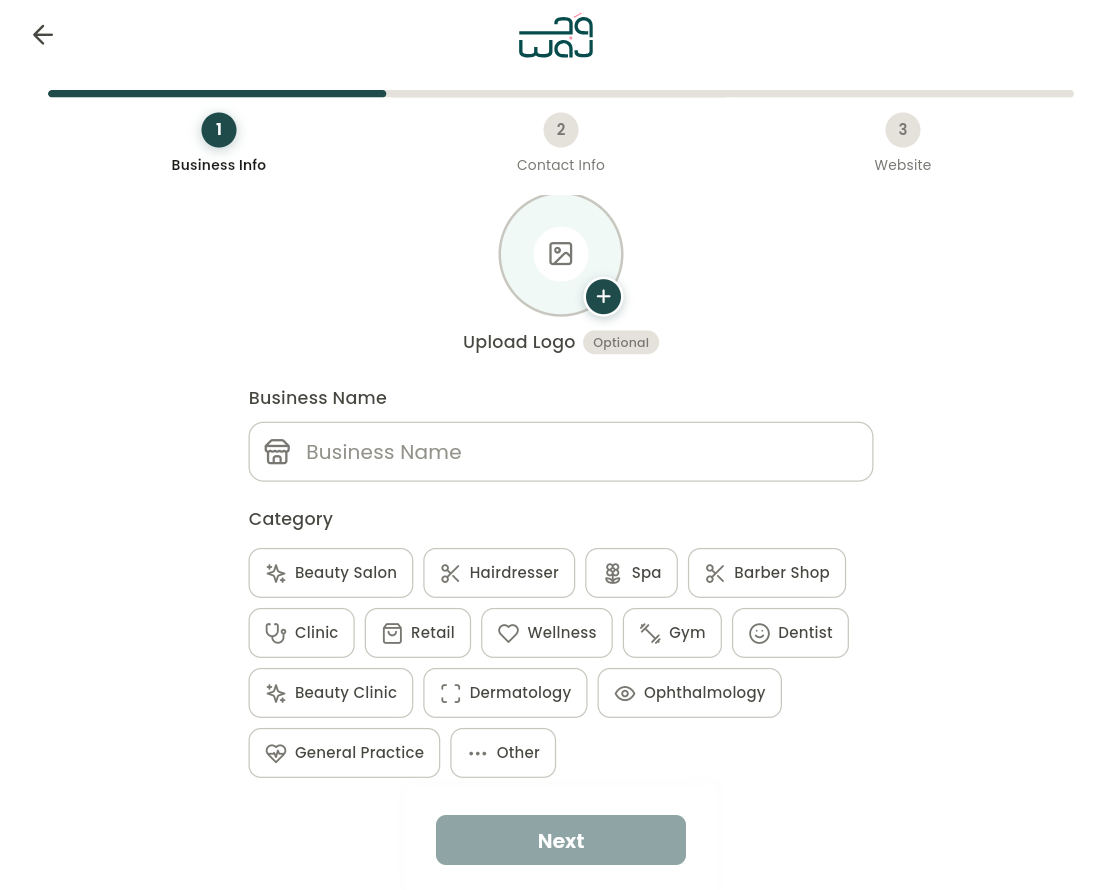
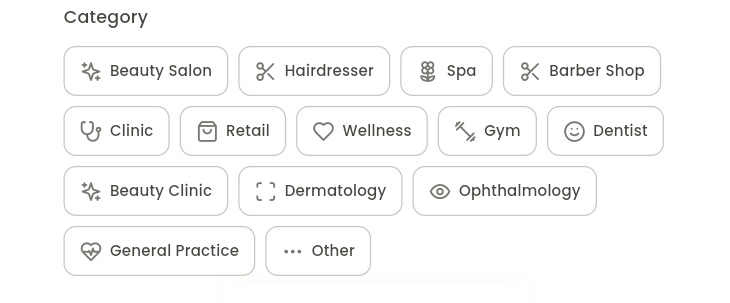
Enter your business name, an optional logo, and pick one business type from seven options. The business type you choose shapes your starting experience: it sets your default bottom-navigation layout and gives you a starter set of service categories tailored to your industry.
- Business type: Salon & Barber — Typical fit: Hair salons, barbershops
- Business type: Spa & Wellness — Typical fit: Spas, wellness/beauty centers
- Business type: Gym & Fitness — Typical fit: Gyms, fitness studios
- Business type: Medical & Clinic — Typical fit: Clinics, dental, dermatology, general practice — includes clinical-record features
- Business type: Retail & Pharmacy — Typical fit: Retail-first / POS-centric businesses, pharmacies
- Business type: Sales & Consultations — Typical fit: Businesses built around a sales pipeline / leads rather than bookings
- Business type: Other — Typical fit: Anything that doesn't fit the categories above
Default navigation by business type
- Salon & Barber, Spa & Wellness, Gym & Fitness, and Other: bottom navigation opens on Bookings, Reports, Customers, with Home tucked behind the quick-action button and Staff/Sales available from the sidebar or More menu.
- Medical & Clinic: bottom navigation opens on Bookings, Reports, with Customers and Leads in the More menu, plus the clinical record system.
- Retail & Pharmacy: bottom navigation opens on your Retail POS dashboard, Reports, Inventory instead of Bookings — a retail-first layout.
- Sales & Consultations: bottom navigation opens on Reports, Customers, Leads, built around a sales pipeline rather than a booking calendar.
None of this is locked in — rearrange your navigation any time from Settings → Customize Menu, and rename, delete, or add to your starter service categories any time from your Services menu.
Step 2: Contact Info
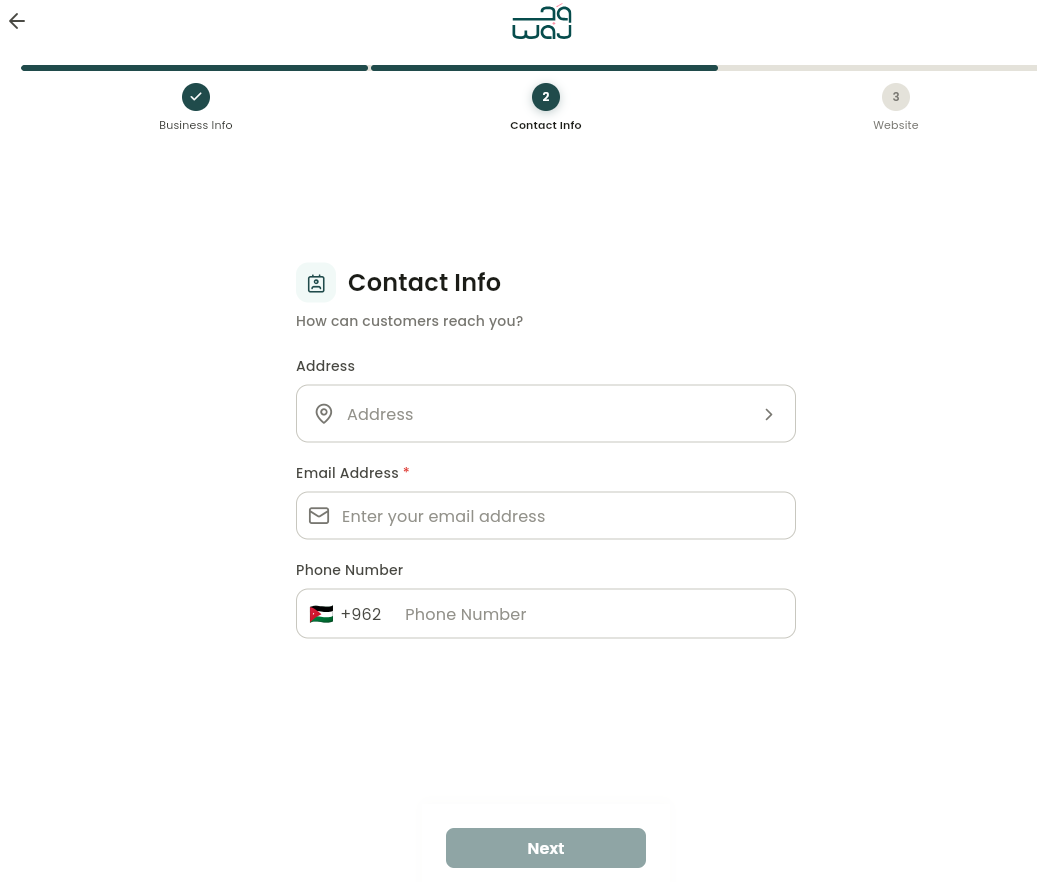
Pick your business address on the map, and enter a phone number and email. Email-uniqueness checks only run if you signed up by phone, and phone-uniqueness checks only run if you signed up by email, since the method you used to sign up is already tied to your account.
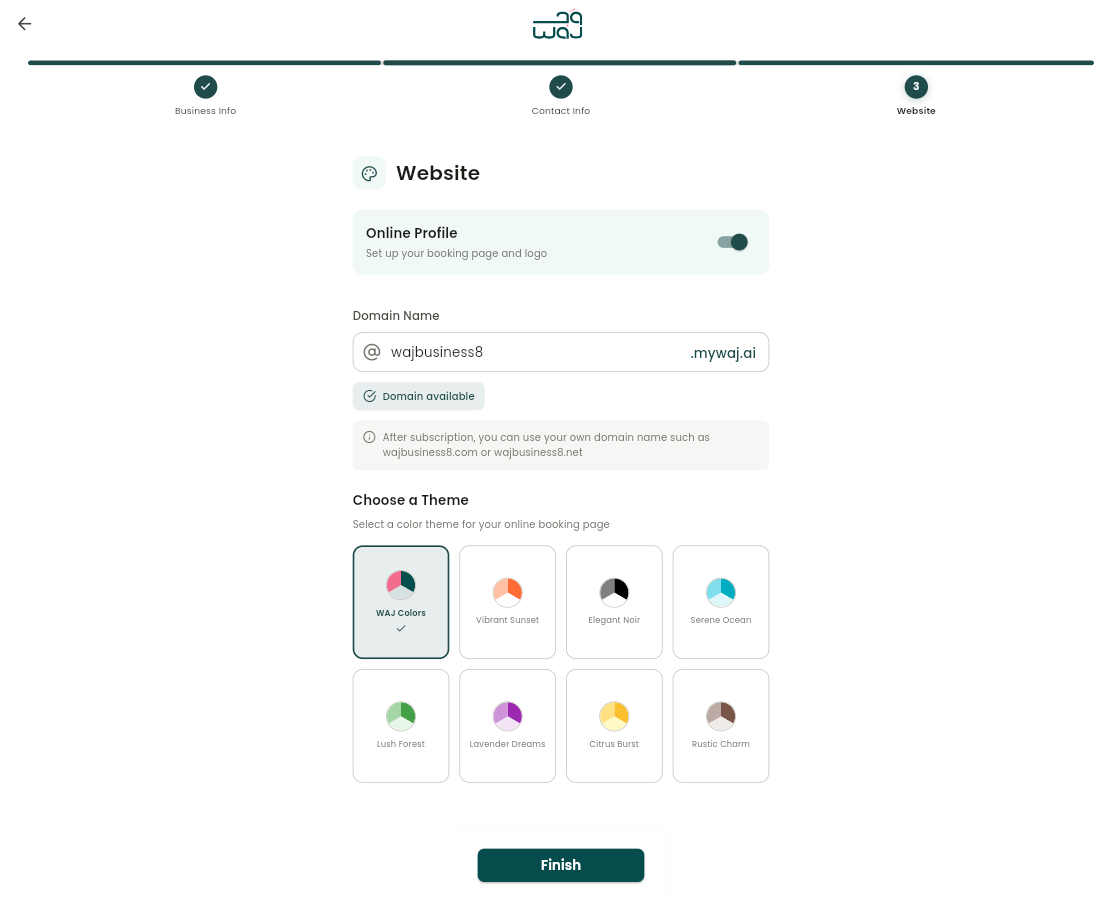
Step 3: Website Theme
Choose the look of your online booking site, along with your domain/subdomain and initial branding.
Notes & limitations
The business type choice sets defaults only — every navigation layout and starter category can be changed later from Settings → Customize Menu or your Services menu. Onboarding takes about 2-3 minutes end to end.
Follow WAJ on Google
Add WAJ as a preferred source to see more of our articles in your Google Search results, marked with a "preferred" badge.