
Client Intake & Consent Forms
Overview
Forms let you build custom intake and consent forms for clients to fill out and sign as part of the booking process — think medical history questionnaires, waivers, or consent to treatment.
Building a form
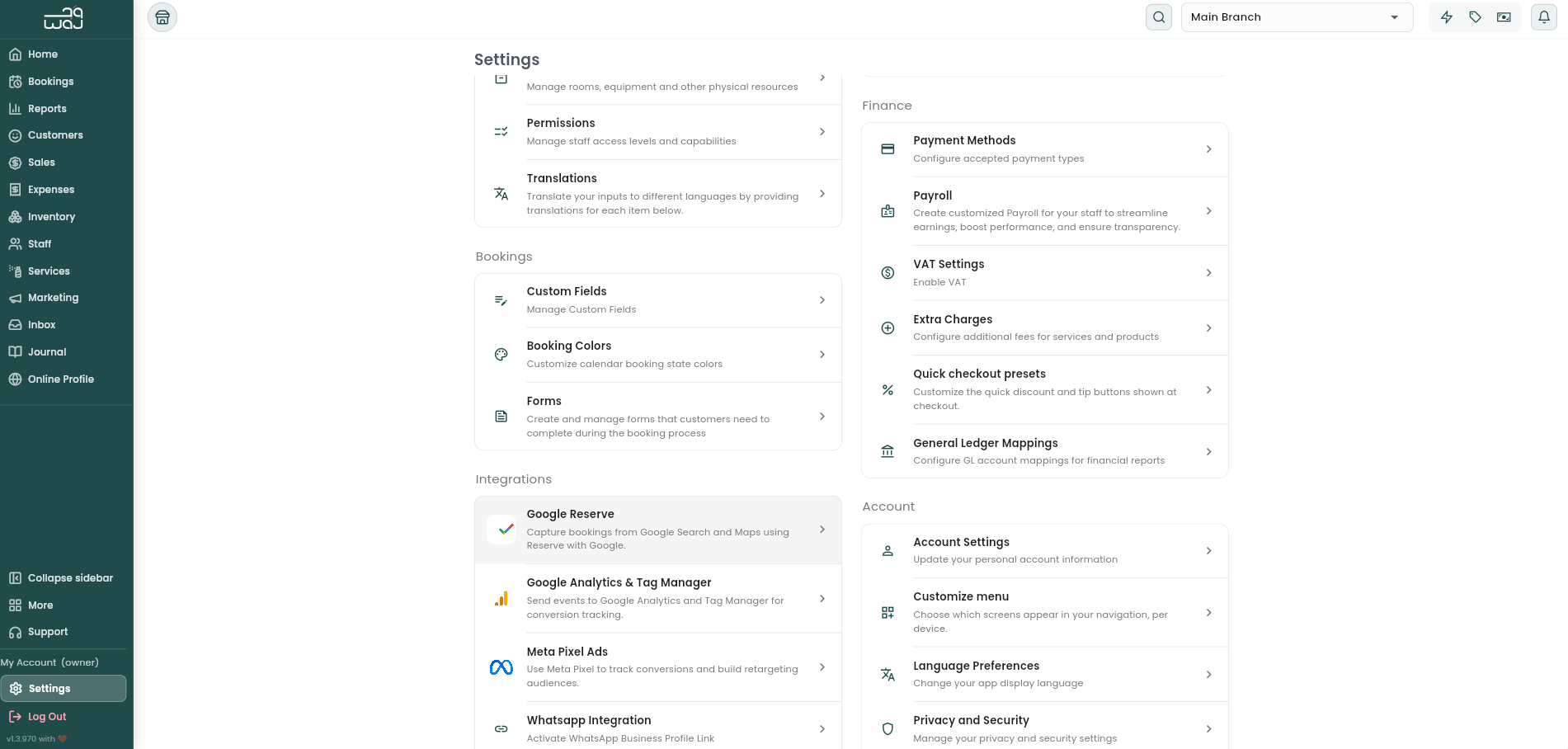
Go to Settings → Bookings → Forms → Create Form, then:
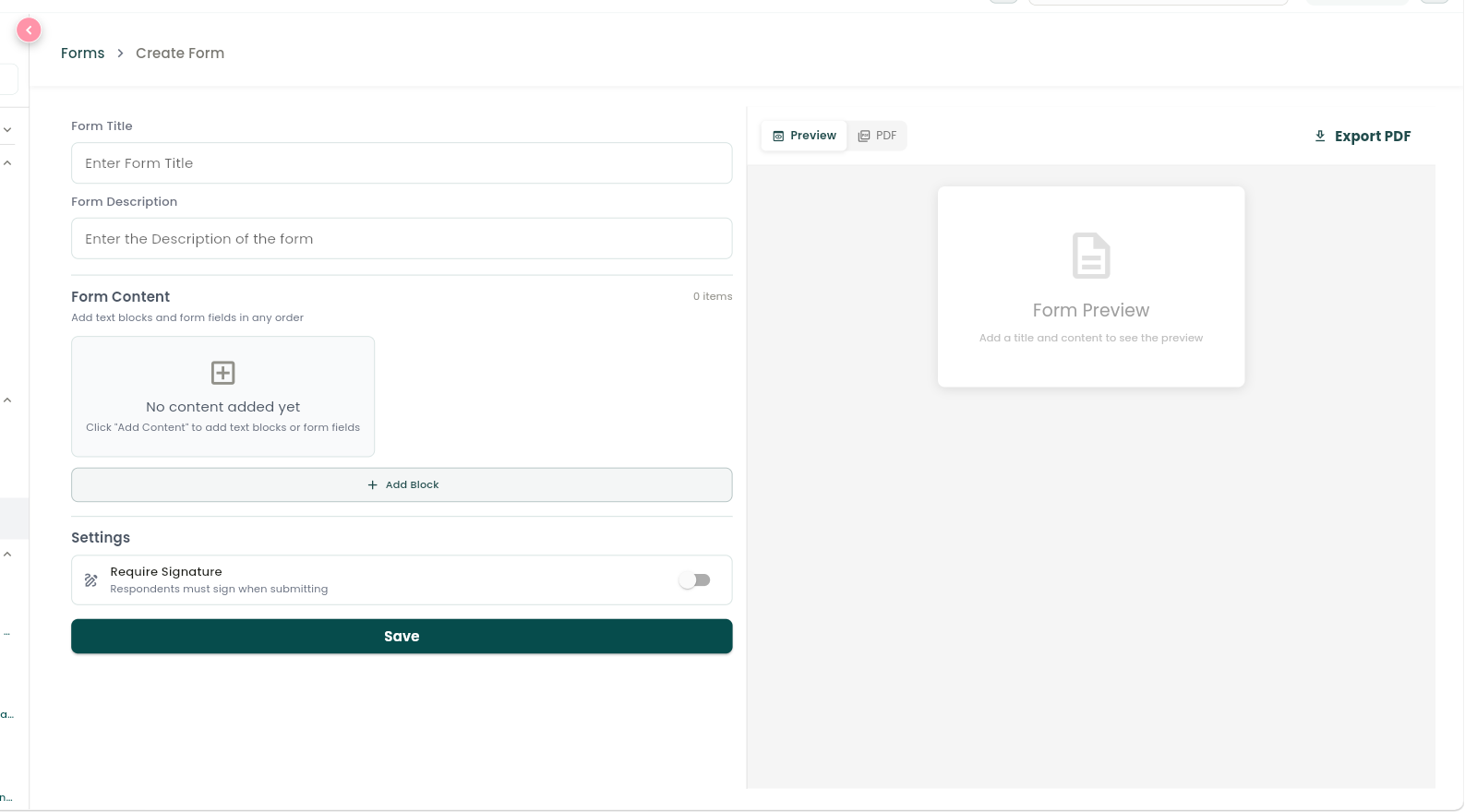
- Give it a Form Title and Form Description.
- Build the content by adding blocks in any order — Heading and Paragraph for text (useful for consent or legal copy), plus interactive fields: Short Text, Long Text, Checkbox, Multiple Choice, Dropdown, and Yes/No.
- Drag to reorder blocks, and edit or delete each one individually. Choice-based fields let you set the list of options and whether an answer is required.
- A live preview shows exactly what the client will see as you build.
- Turn on Require Signature if respondents need to sign before they can submit.
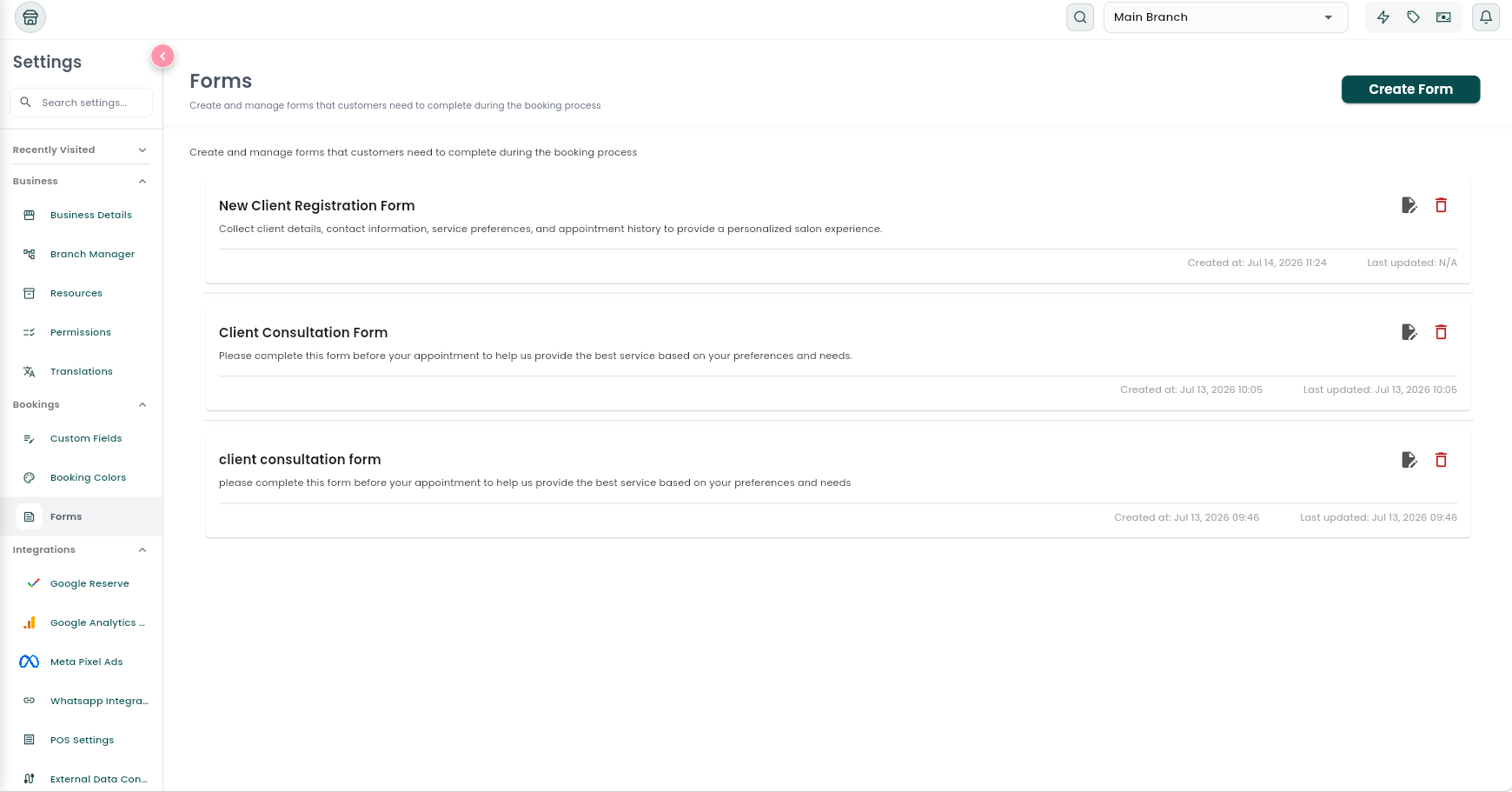
- Tap Save. The Forms screen lists every form you've created, with edit and delete controls for each.

Sending a form to a client
From a customer's profile Forms tab, or from an appointment's details, there are three ways to get a form to a client:
- Send — opens your email app with the form link ready to go (falls back to copying the link if no email app or address is available).
- Copy Link / Share — gives you a public link, hosted on your own booking website, that you can send through any channel.
- Fill Form — fill it out and sign on the client's behalf, right on your device during their visit.
Filling and signing
The client (or you, on their behalf) enters their name and the date, completes each field, and signs using a signature pad, with a Clear Signature option if they need to redo it. Tapping Sign & Save submits the form and generates a branded PDF with your business's logo, the client's answers, their signature, and an "Electronically signed on" timestamp — viewable and downloadable at any time. You can also Preview PDF before it's signed.
Tracking responses
Public share links can be limited by an expiry date and a maximum number of submissions, and you can activate or deactivate them at any time. The Form Responses screen lists every submission with the respondent's name, contact details, a preview of their answers, and whether it was signed — tap in for the full response and the signature image.
On a client's profile, a signed form shows a green Signed badge with the date, plus View and Download actions; an unsigned form shows Send, Copy Link, and Fill Form instead.
Follow WAJ on Google
Add WAJ as a preferred source to see more of our articles in your Google Search results, marked with a "preferred" badge.