How to Connect WAJ to Claude, ChatGPT, Claude Code and Cursor: Step-by-Step Guide
WAJ Team
November 3, 2026

You can connect WAJ to Claude or ChatGPT in four steps: the owner switches on AI connectors, the team gets the right permissions, you add WAJ to your AI app, and you sign in and choose your access level. There's no API key, no developer and no extra software. In Claude, WAJ is already listed in the connector directory. In ChatGPT, you add it as a custom MCP server using https://mcp.waj.ai/mcp. This guide covers every step, how approvals work, how to disconnect and how to fix common problems.

Before you start
- The business owner has to switch on AI connectors once for the business.
- Each person's WAJ role needs the AI permissions: Access AI data to look things up, and Perform AI actions to make changes.
- You need an account with the AI app. Connectors from Claude's directory work on every Claude plan. In ChatGPT, custom connectors depend on your plan and workspace settings.
Step 1: Switch on AI connectors (owner only)
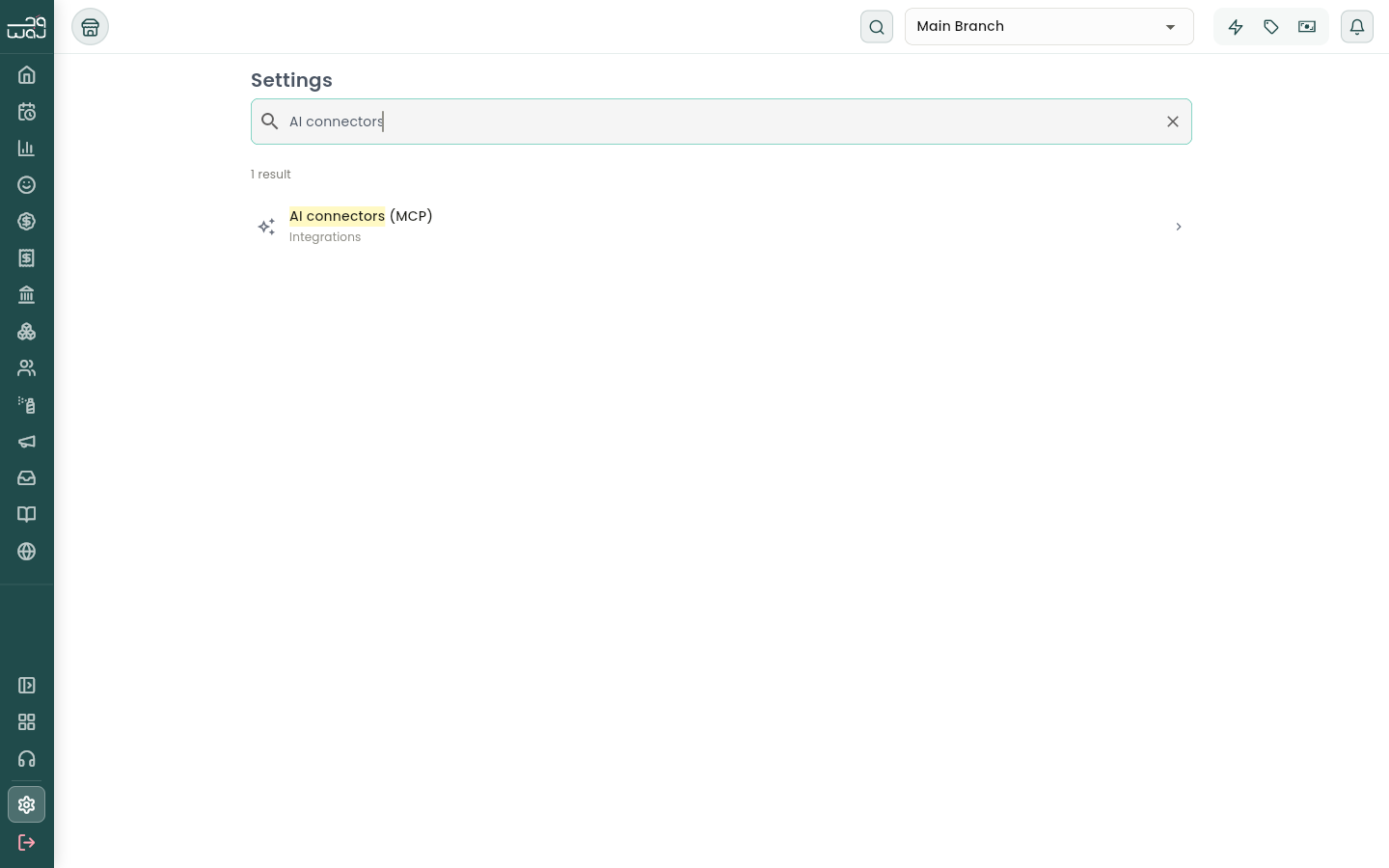
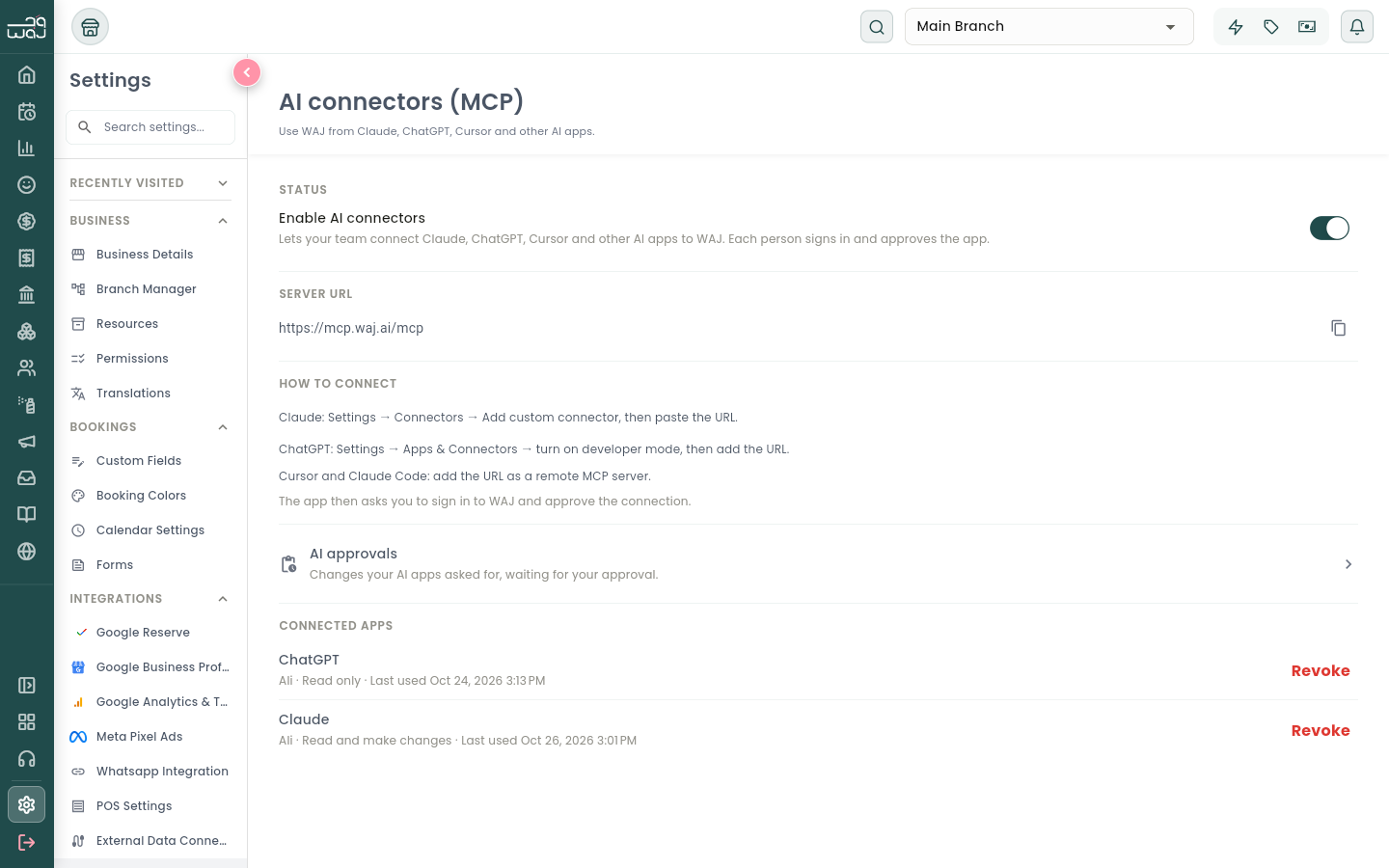
In WAJ, go to Settings → Integrations → AI connectors (MCP), or type "AI connectors" in the settings search. Turn on Enable AI connectors.
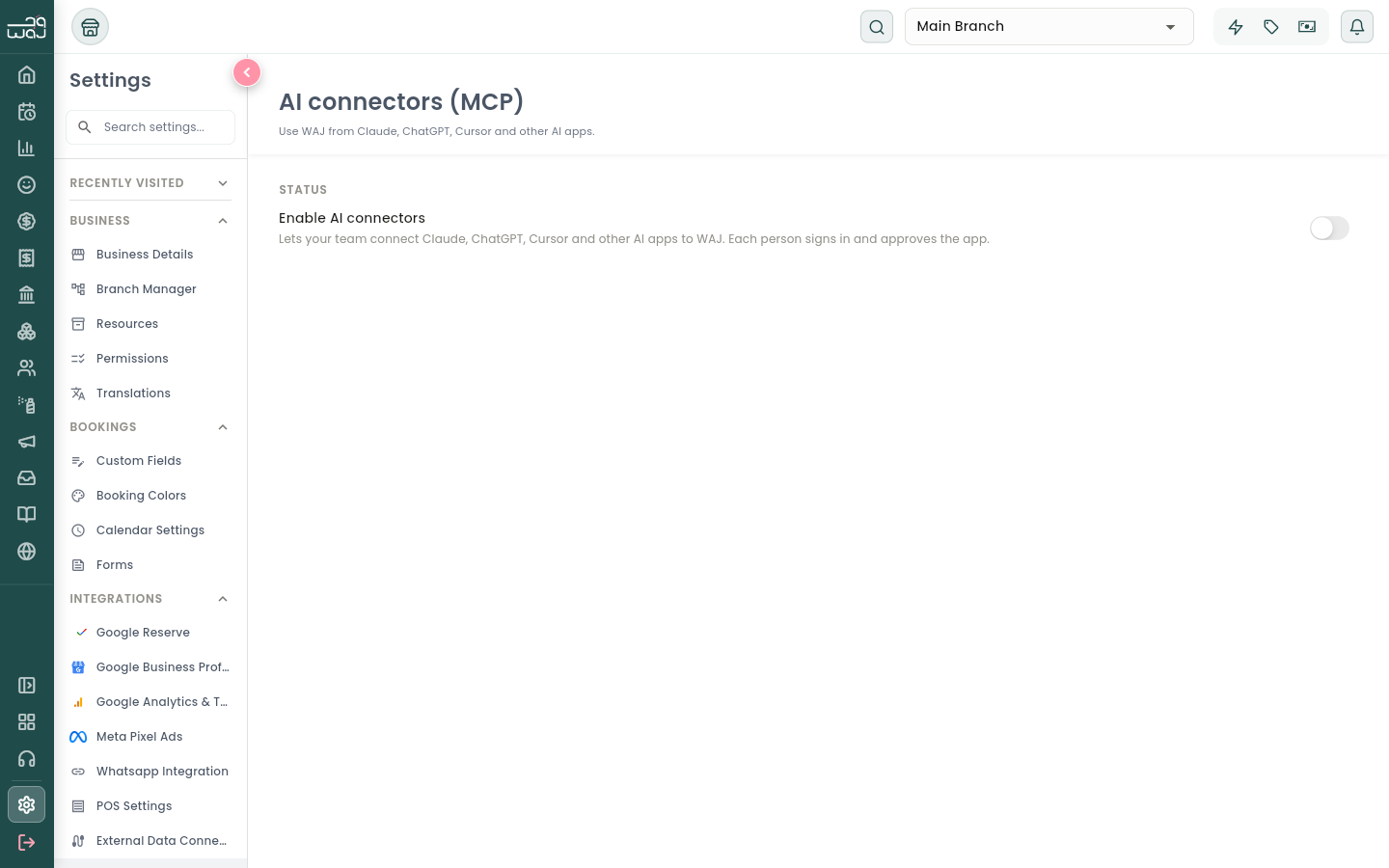
The screen then shows the server address, short instructions for each app, your AI approvals and the list of connected apps.
Step 2: Give your team the right permissions
In Settings → Permissions, turn on Access AI data for every role that should ask questions. Add Perform AI actions only for roles that should make changes, such as managers or the front desk.
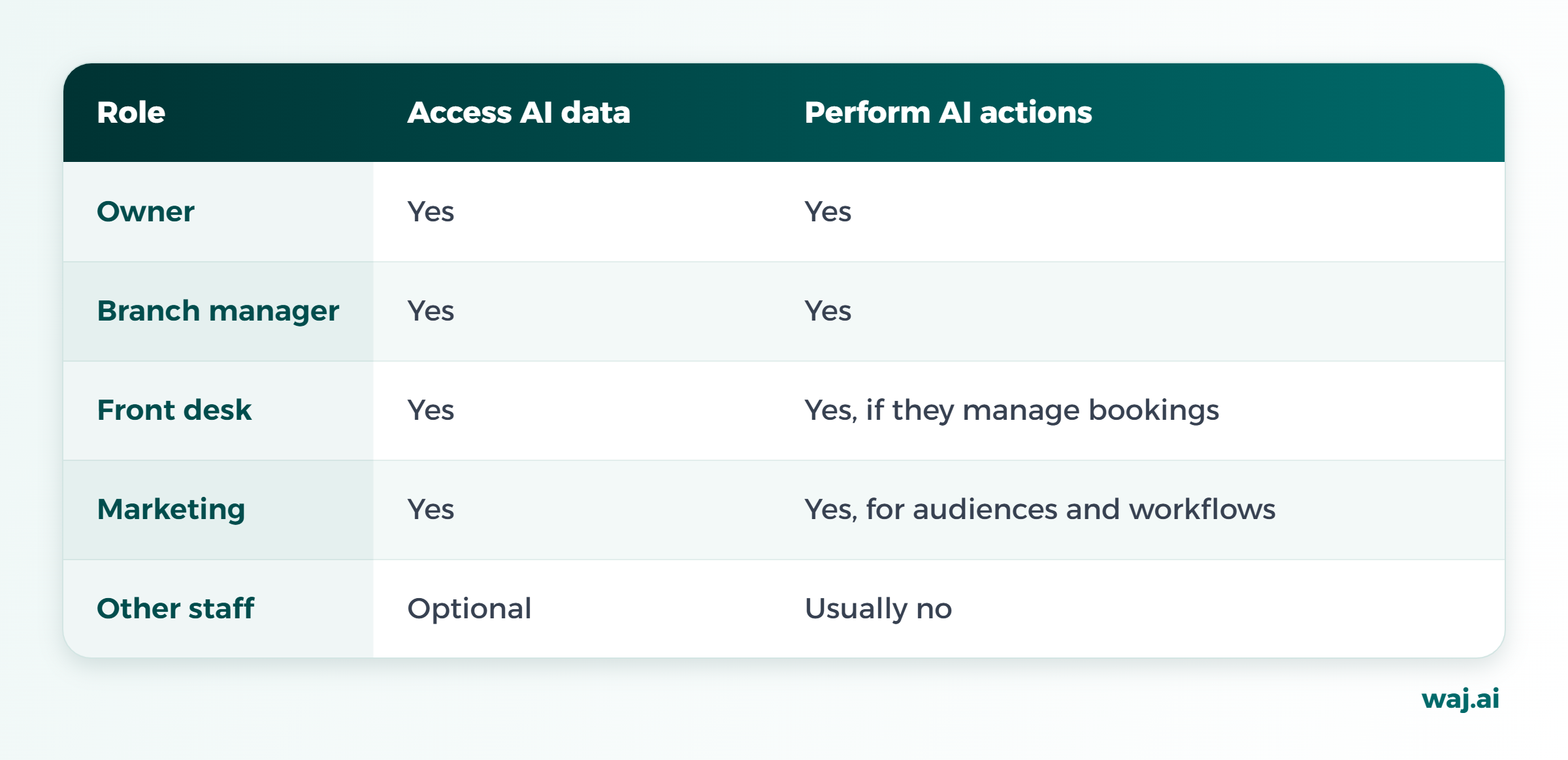
The AI app always works with the same access as the person who connected it. A receptionist who can't see payroll in WAJ won't see it in Claude or ChatGPT either.
Step 3a: Connect WAJ to Claude
WAJ is listed in Claude's connector directory:
- In Claude, open Customize → Connectors.
- Select +, search for WAJ and select it.
- Select Connect.
On Claude Team or Enterprise, an organization owner adds WAJ first. Each team member then connects with their own WAJ login.
Prefer to paste a URL? Choose Add custom connector, name it WAJ, and paste https://mcp.waj.ai/mcp. Keep the /mcp at the end, or it won't connect.
Step 3b: Connect WAJ to ChatGPT
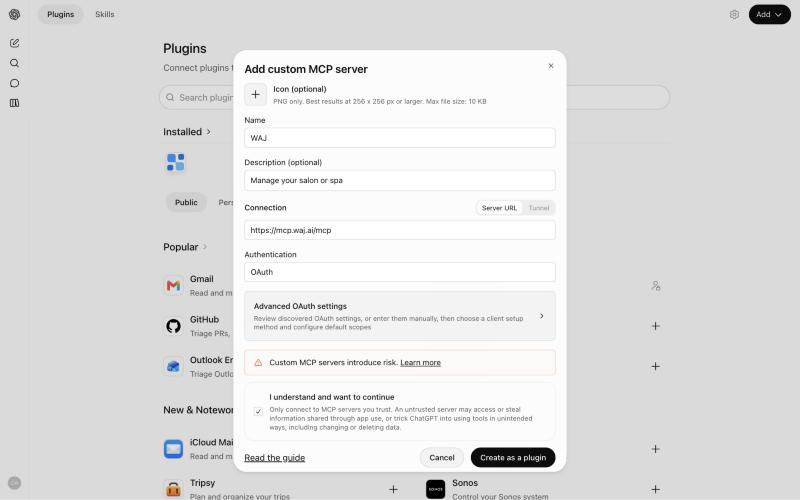
- In ChatGPT, open Plugins and select Add → Add custom MCP server.
- Name it WAJ and paste https://mcp.waj.ai/mcp. Leave authentication on OAuth.
- Read the notice, tick I understand and want to continue, and select Create as a plugin.
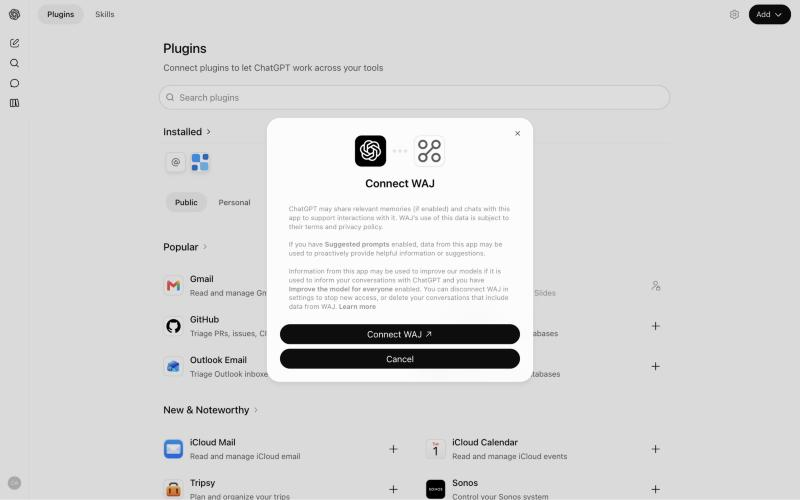
- Select Connect WAJ.
Step 3c: Claude Code and Cursor (for developers)
Teams that build on WAJ can add the same server address in Claude Code or Cursor. The commands are in the full setup guide.
Step 4: Sign in and choose your access
The AI app opens WAJ in your browser. Sign in with your usual WAJ account and check three things on the connection screen: the business, the account you're signed in as, and the access level.
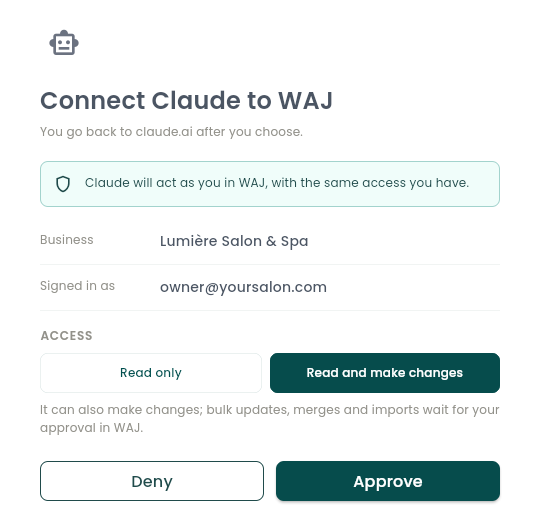
- Read only: the AI app can look things up but change nothing.
- Read and make changes: it can also create and edit, with bigger changes still waiting for your approval.
Select Approve, and you're sent back to your AI app.
Tip: start with read-only for the first week or two. Once your team trusts the answers, switch the people who need it to read and make changes.

Test it with your first question
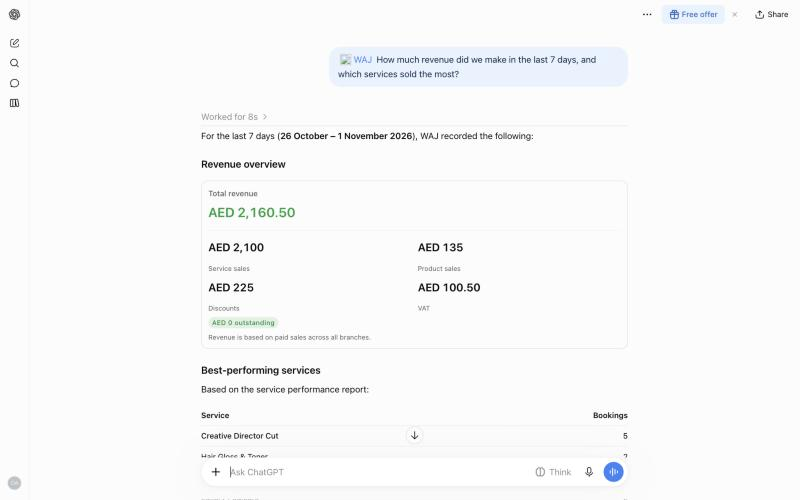
Open a new chat, make sure WAJ is switched on, and ask something simple:
- "What does tomorrow look like?"
- "How did this month compare with last month?"
In ChatGPT, select + and choose WAJ first. You can ask in Arabic straight away, and the answer comes back in Arabic.
Before any change, the AI app asks you first. In ChatGPT you'll see Allow once or Deny.
How approvals work
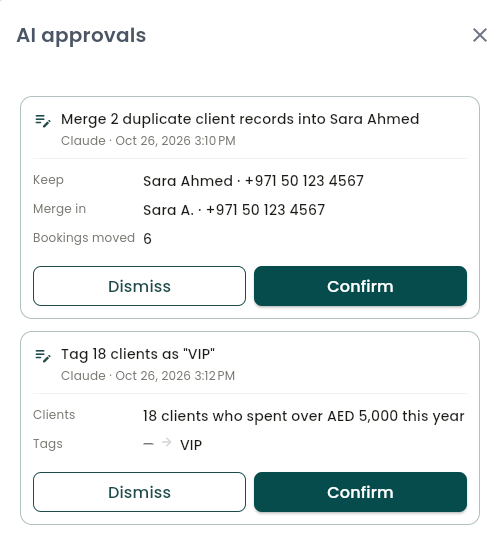
Some changes never apply straight from a chat:
- Bulk updates
- Client merges
- Imports
- Staff access changes
- Anything customers will see, such as a marketing workflow that sends messages
These go to Settings → AI connectors (MCP) → AI approvals. Each request shows which app asked and exactly what will change. Select Confirm or Dismiss. Requests expire after 24 hours.
How to disconnect
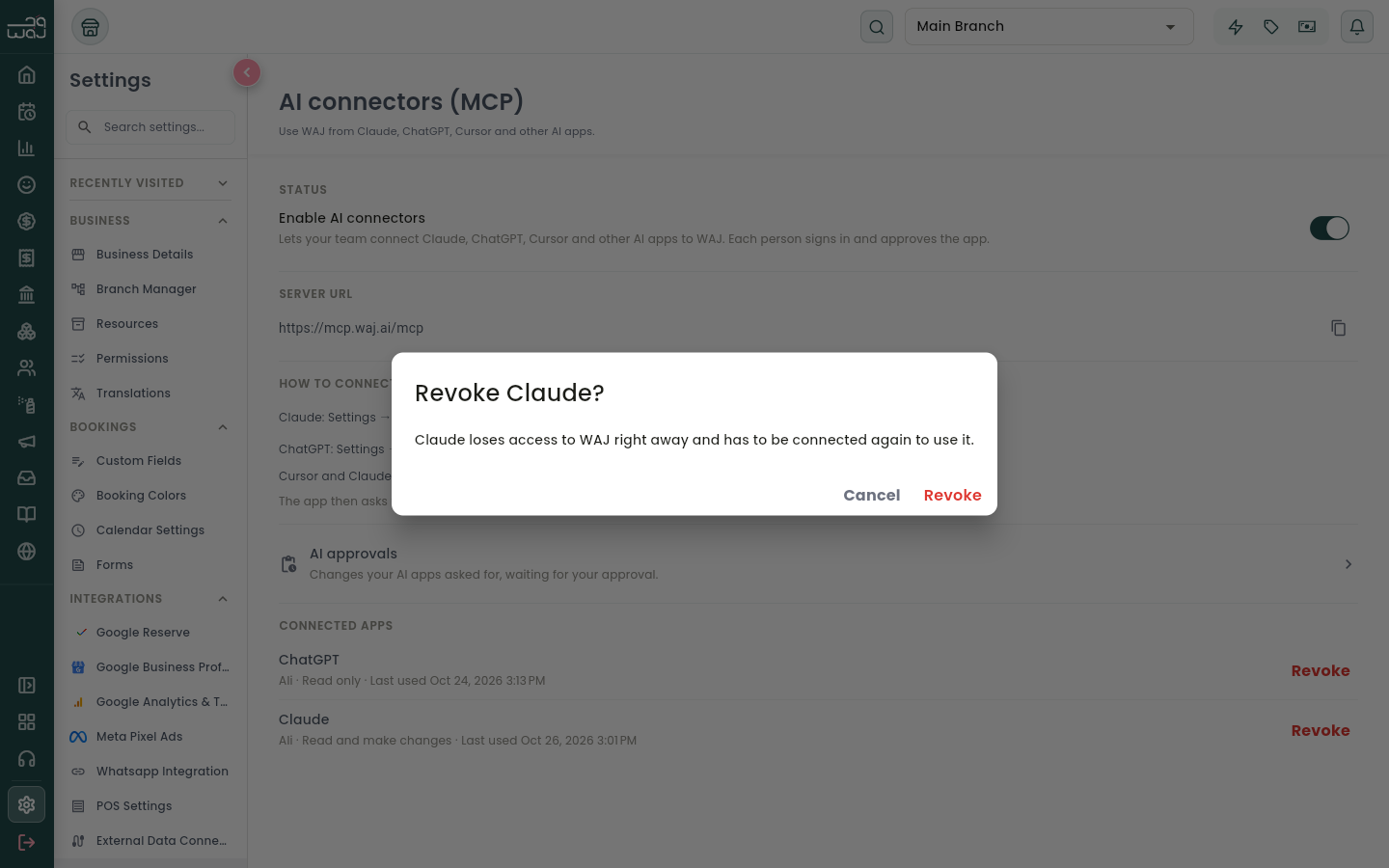
Under Connected apps, the owner sees every AI app linked to the business, who connected it and when it was last used. Select Revoke to cut one off at once, or switch off Enable AI connectors to stop them all.
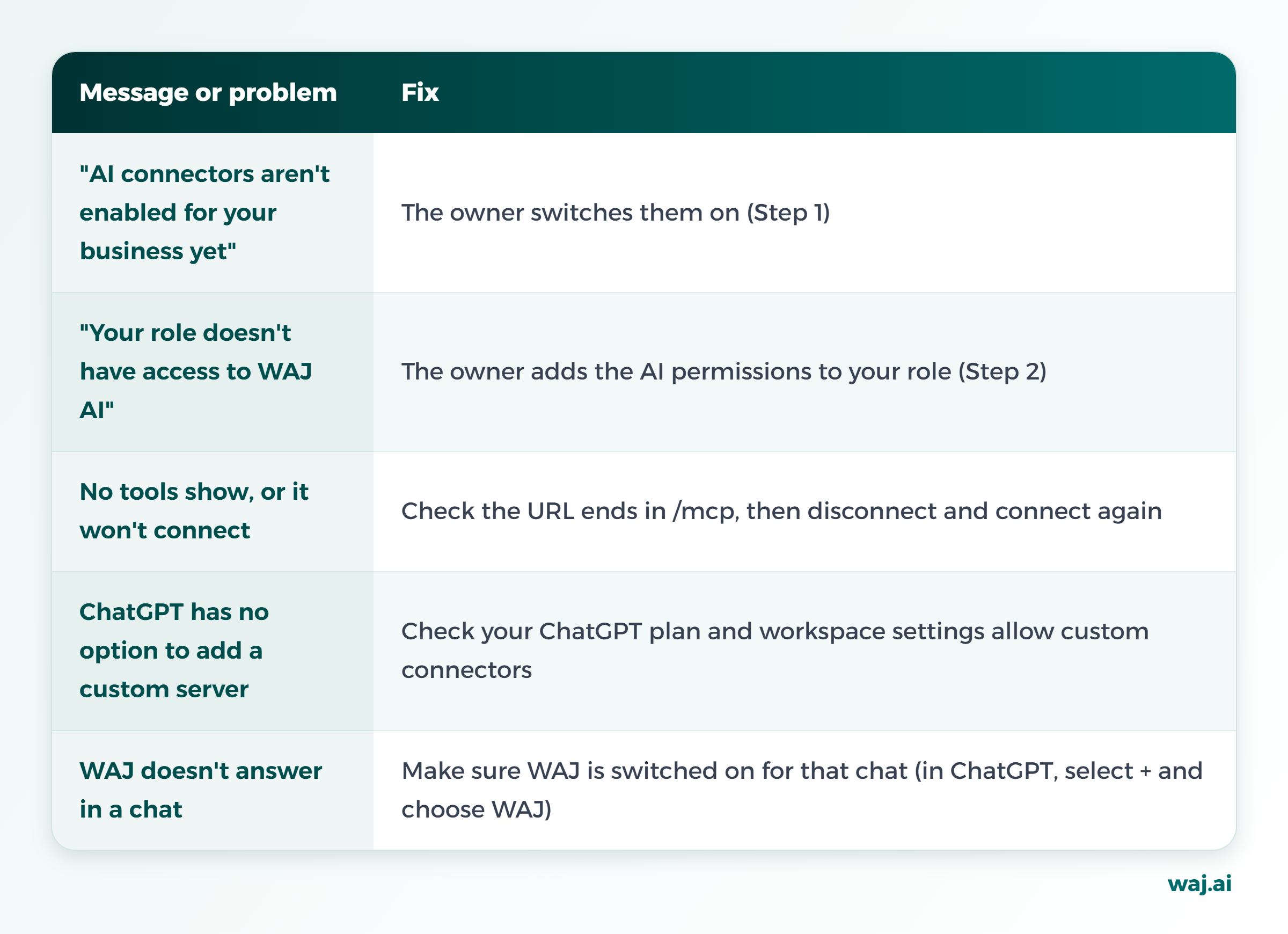
Troubleshooting
What next?
Connected? See what to ask WAJ in ChatGPT and Claude, including six ready-made workflows. Want customers to book you through AI too? Read how to get your salon booked from ChatGPT and Claude. New to WAJ? Book a demo.
Frequently asked questions
How do I connect WAJ to ChatGPT?
The owner switches on AI connectors in WAJ. Then, in ChatGPT, open Plugins, choose Add custom MCP server, paste https://mcp.waj.ai/mcp with OAuth authentication, and sign in with your WAJ account.
How do I connect WAJ to Claude?
In Claude, open Customize → Connectors, select +, search for WAJ and select Connect, then sign in with your WAJ account.
Do I need an API key?
No. You sign in with your WAJ account through OAuth.
Which Claude plans support WAJ?
Connectors from Claude's directory work on every Claude plan. On Team or Enterprise, an organization owner adds WAJ first.
Can I give some staff read-only access?
Yes. Give their role Access AI data only, or have them choose read-only when they connect.
How long does setup take?
About 10 minutes for the full setup.
Follow WAJ on Google
Add WAJ as a preferred source to see more of our articles in your Google Search results, marked with a "preferred" badge.