
Connect WAJ to Claude
WAJ is in Claude’s connector directory, so you can add it in a few clicks and ask Claude about your bookings, sales and team.
Server URL
https://mcp.waj.ai/mcp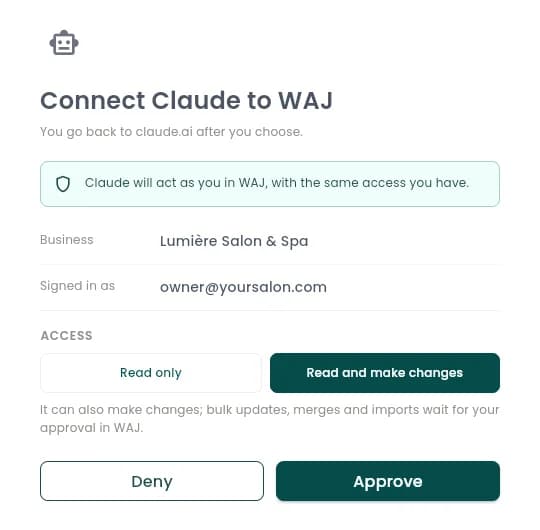
Setup
Add WAJ to Claude
Works in Claude on the web, the desktop app and the mobile apps.
Turn on AI connectors in WAJ
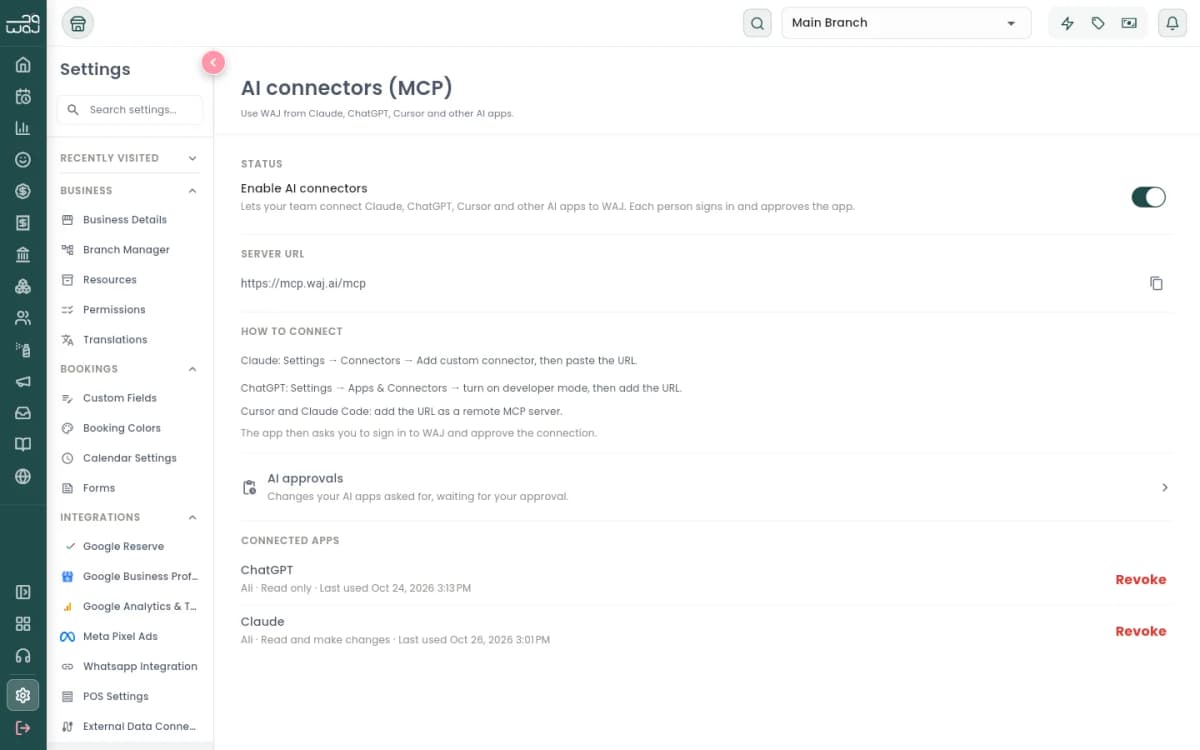
The business owner opens Settings → AI connectors (MCP) in WAJ and switches on Enable AI connectors. This is done once for the whole business.
Find WAJ in Claude
In Claude, open Customize → Connectors, select + next to Connectors, search for WAJ and select Connect. You can also open WAJ’s page in the directory.
https://claude.ai/directory/wajSign in and approve
Claude opens WAJ in your browser. Sign in with your WAJ account, choose Read only or Read and make changes, and select Approve. You go straight back to Claude.
Ask Claude
Start a new chat, check that WAJ is on under + → Connectors, and ask in your own words. Claude asks before it runs anything that makes a change.
On Claude Team or Enterprise
An organization owner adds WAJ first: Organization settings → Connectors → Browse connectors → WAJ → Add to your team. Each member then connects with their own WAJ login.
In Claude Code
Run this command, then run /mcp in Claude Code and choose WAJ to sign in.
claude mcp add --transport http waj https://mcp.waj.ai/mcpBuilt-in workflows
In a chat, select + → WAJ to run a daily briefing, a sales analysis, a staff review and more. In Claude Code, type / and pick a WAJ prompt.
Prefer to paste the URL?
Select Add custom connector, name it WAJ and paste the server URL. Use the full URL, including /mcp at the end.
https://mcp.waj.ai/mcpExamples
Ask in your own words
WAJ answers from your own data, for the branches and records your role can see.
- “What’s booked tomorrow, and who is working?”
- “Find a free 60-minute slot with Sara on Thursday.”
- “Block Sara’s calendar tomorrow from 2 to 4 pm for training.”
- “How did this month compare with last month?”
- “Which services sold the most in the last 30 days?”
- “Export this month’s invoices to a CSV file.”
- “Who are my top 10 clients by spend this year?”
- “Which clients haven’t been back in 90 days?”
- “Find duplicate client records and merge them.”
- “Which staff member had the most bookings last week?”
- “Add a day off for Ahmed next Monday.”
- “Add a 45-minute express facial at AED 250.”
- “What do I need to reorder?”
- “Create an audience of clients who spent over AED 2,000 this year.”
- “Build a win-back workflow for clients who haven’t visited in 60 days.”
Permissions and safety
You decide what the AI app can do
- Your role sets the limits
- The AI app acts as you, with the same access your WAJ role gives you. Owners choose which roles can use WAJ AI in Settings → Permissions.
- Read only, or read and make changes
- You choose when you connect. Read only lets the AI app look things up without changing anything.
- Changes are confirmed in the chat
- Claude and ChatGPT ask before every change, so you can check it first.
- Bigger changes wait for you in WAJ
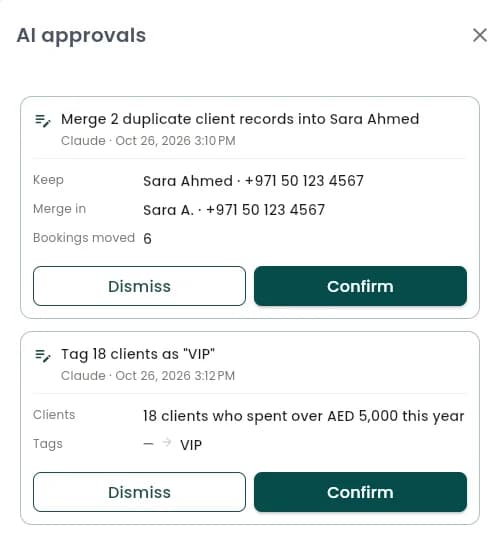
- Bulk updates, merges, imports and anything customers will see, such as sending a campaign, wait under AI approvals until you confirm them. Requests expire after 24 hours.
- No money movement
- Refunds, payouts and other money transfers are not available to AI apps.
- Revoke at any time
- Connected apps lists every AI app, who connected it and when it was last used. Revoke one, or turn off AI connectors to stop them all at once.
More
Other AI apps
- ChatGPTSetup steps
Add WAJ as a custom MCP server in ChatGPT on the web.
- Claude Code
Add WAJ from the terminal, then run /mcp to sign in.
claude mcp add --transport http waj https://mcp.waj.ai/mcp - Cursor
Add the server URL as a new MCP server in Cursor’s settings and sign in when asked.
https://mcp.waj.ai/mcp
FAQ
Questions about WAJ in Claude
Is WAJ in Claude’s connector directory?
Yes. Search for WAJ in Claude’s connectors, or open https://claude.ai/directory/waj. The connector is built and run by WAJ and connects to your own WAJ account.
Which Claude plans can use WAJ?
Connectors from Claude’s directory are available on every Claude plan. On Team and Enterprise, an organization owner adds WAJ before members can connect.
Does Claude ask before changing anything?
Yes. Claude asks before it runs a tool that makes changes. Bulk and customer-facing changes also wait for your approval under AI approvals in WAJ.
Can the AI app issue refunds or move money?
No. Refunds, payouts and other money transfers are not available to AI apps.
Can I ask in Arabic?
Yes. Ask in Arabic or English and the AI app replies in the language you use. Service, staff and client names appear as they are saved in WAJ.
What if the connection fails?
Check that the owner has switched on AI connectors, that your role has the WAJ AI permissions in Settings → Permissions, and, if you pasted the URL, that it ends in /mcp. Then disconnect and connect again from the AI app.
New to WAJ?
WAJ runs bookings, payments, staff, inventory and marketing for salons, spas and clinics.